Create a new item
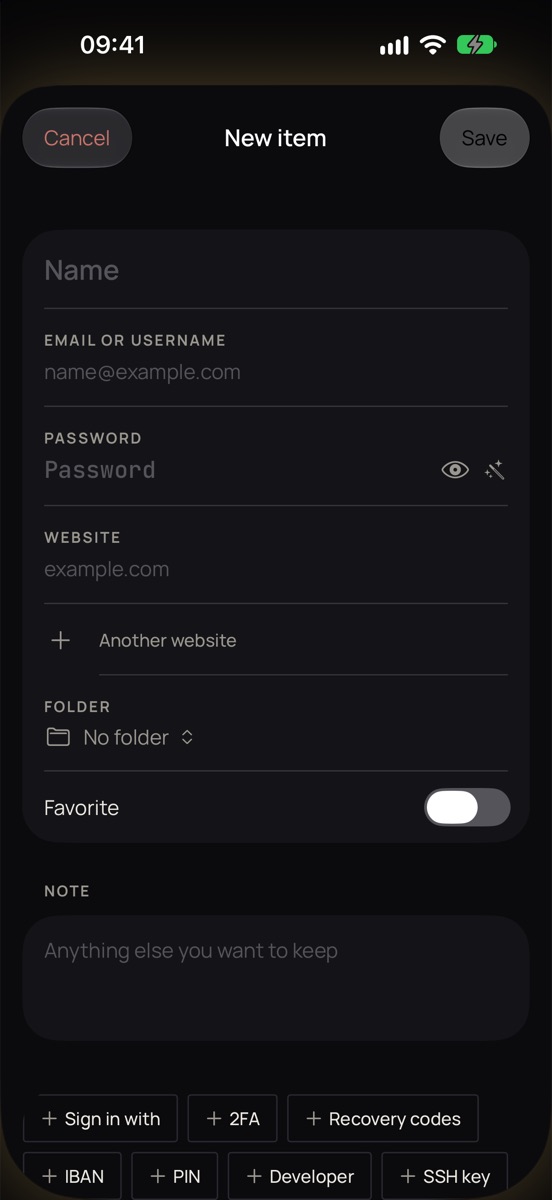
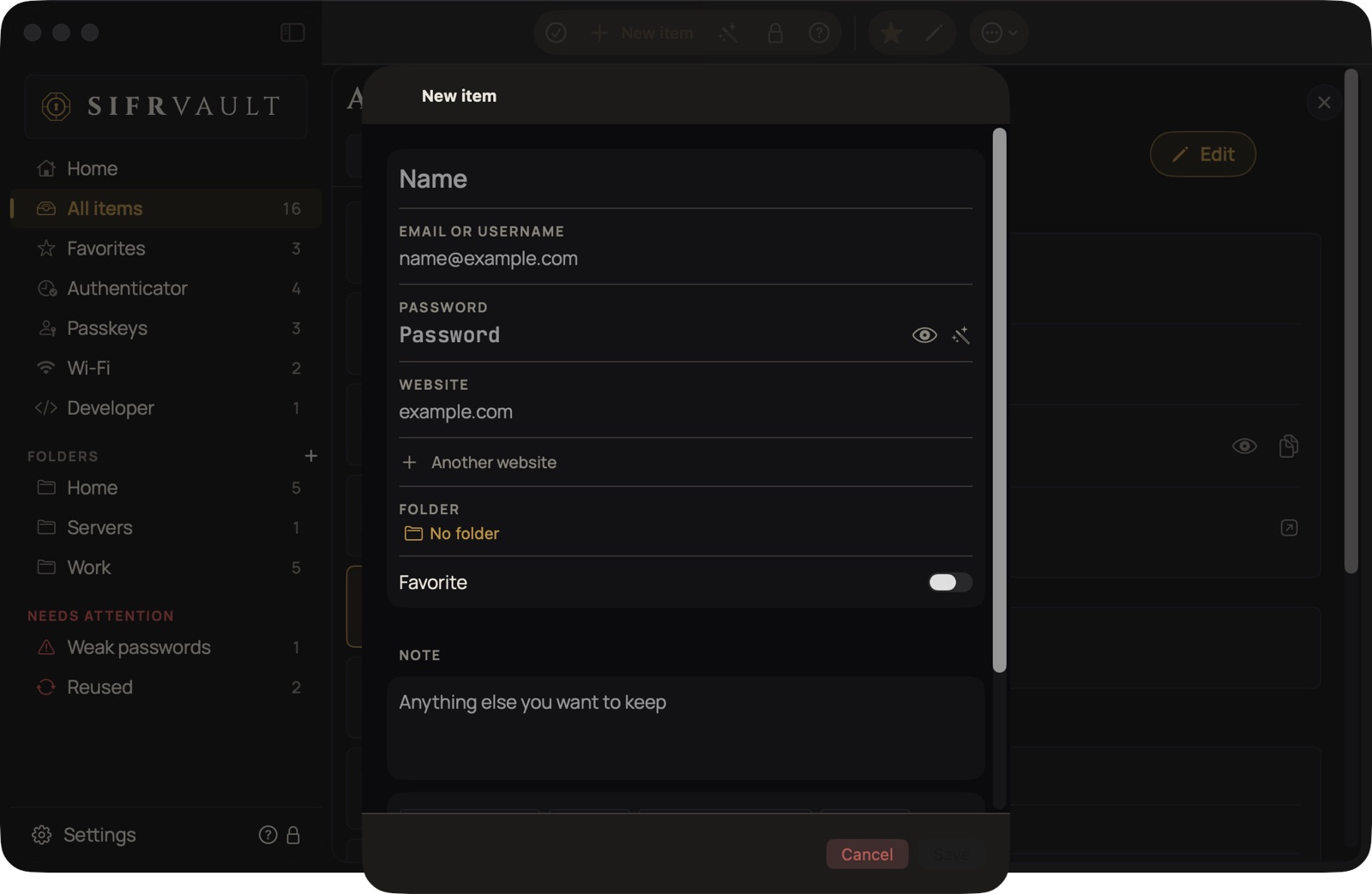
- Tap + at the top right (Mac: ⌘N).
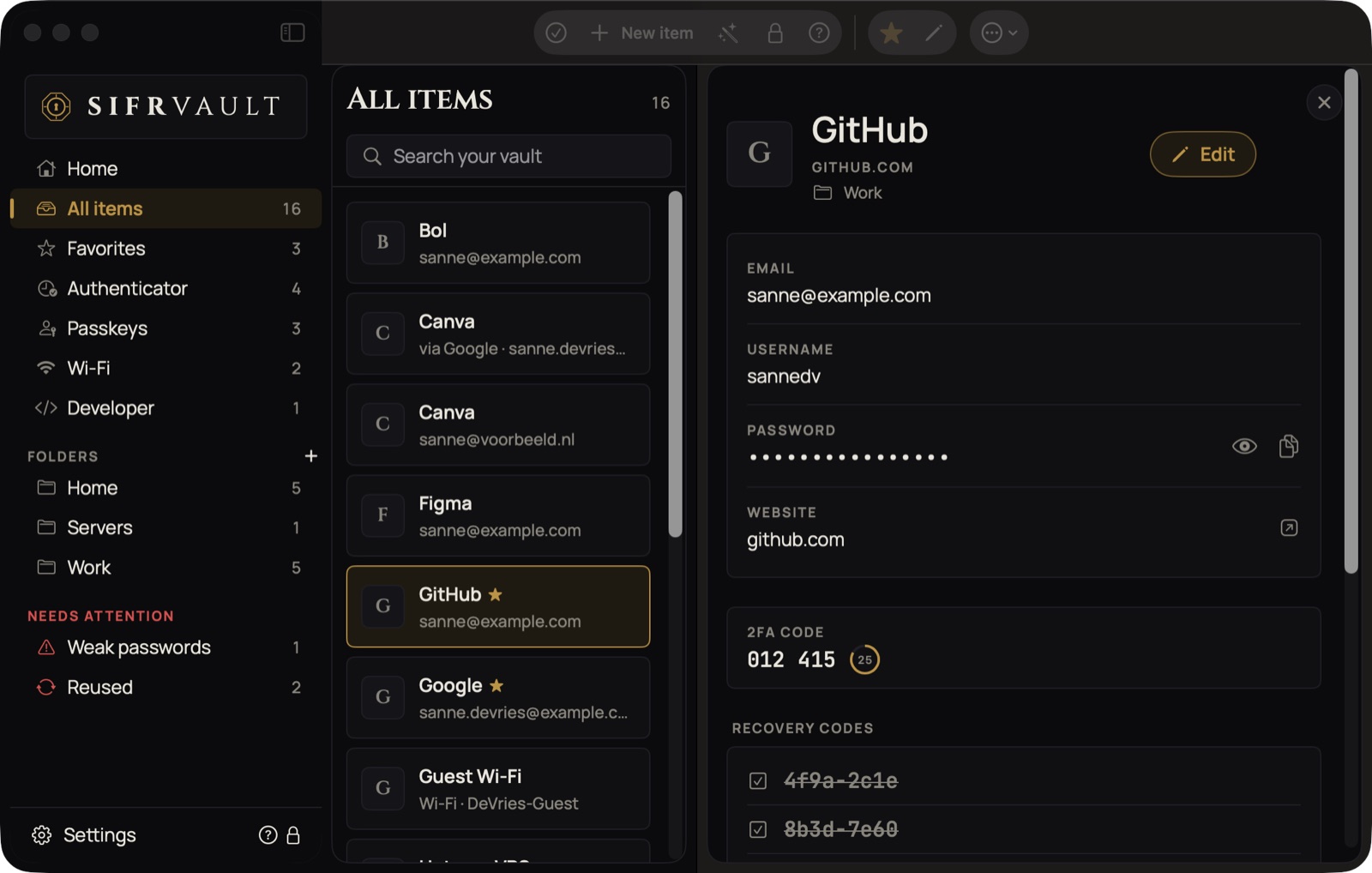
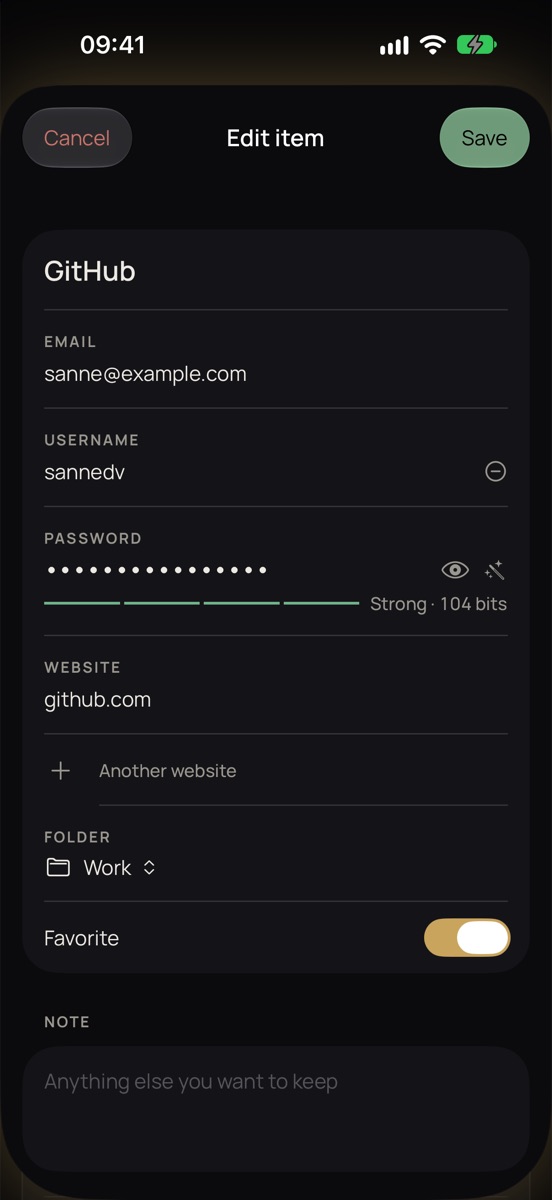
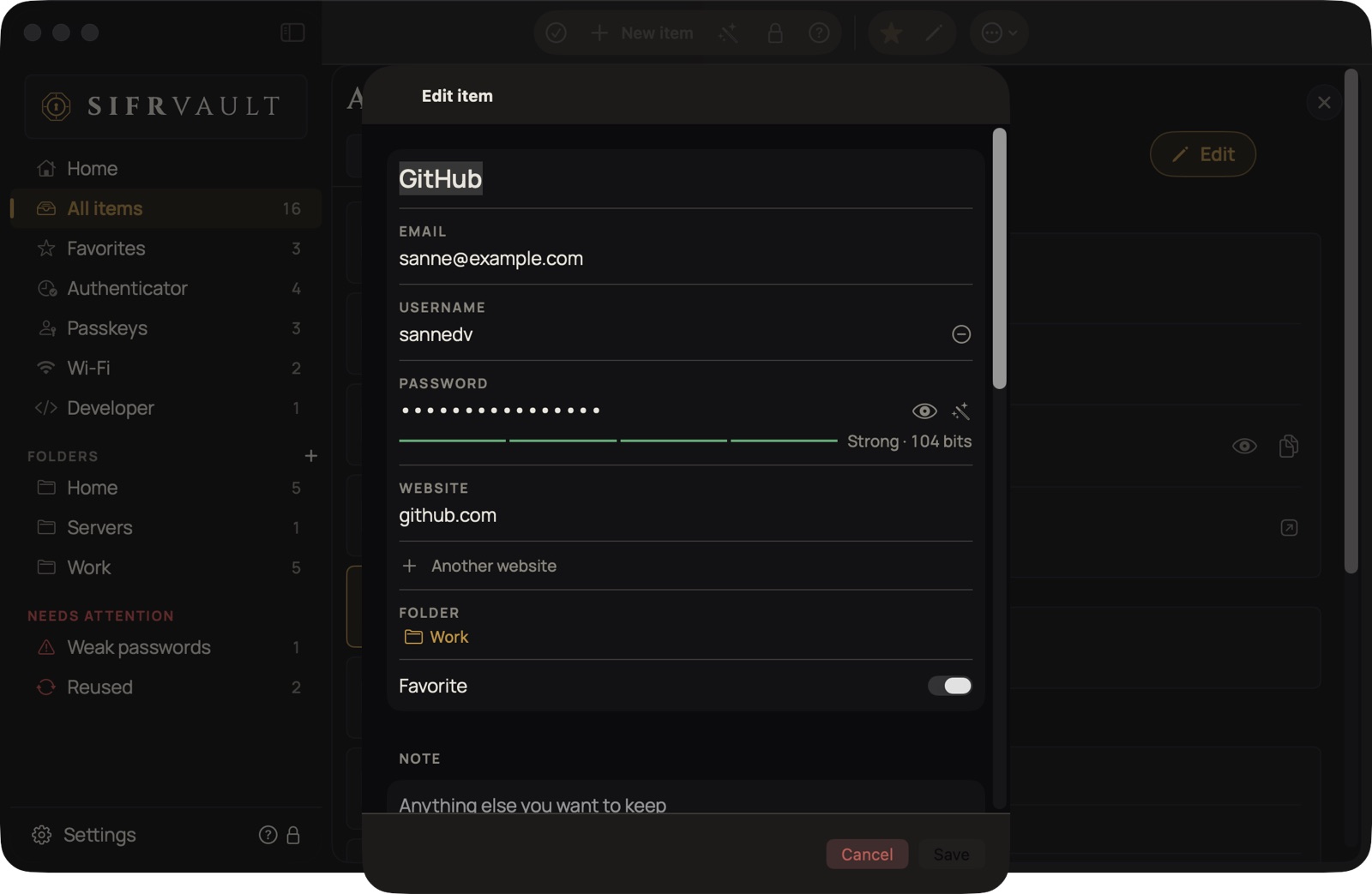
- Fill in the name, email or username, password and website. If you leave the name empty, Sifrvault takes it from the website. Do you sign in with both (as on GitHub)? Tap the + next to the first field for a second login name; Sifrvault names them Email and Username automatically.
- Need more? Add a block at the bottom: + 2FA, + Recovery codes, + IBAN, + PIN, + Developer, + SSH key, + Custom field or + Document.
- Tap Save.
Showing and copying
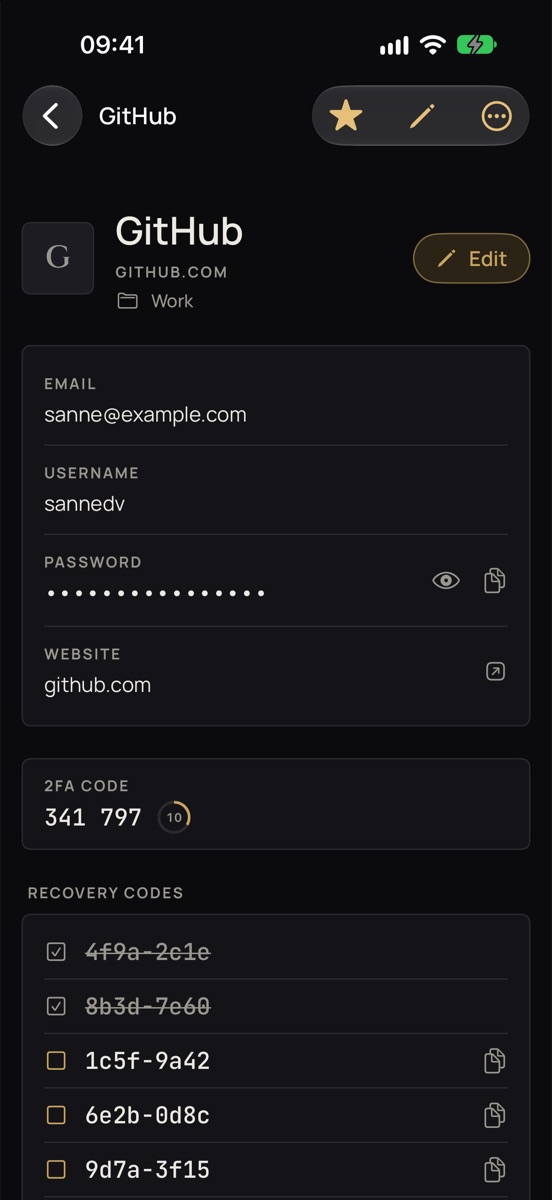
- Eye: shows the password. After 30 seconds Sifrvault hides it again.
- Double-tap a field to copy it, for example your username or 2FA code.
- Passwords disappear from the clipboard automatically after a minute (adjustable).
- Eye: shows the password for 30 seconds.
- Double-click a field to copy it.
- Even faster: quick search with ⇧⌘Space from any app.
Editing, favorites and deleting
Open the item and tap the pencil to edit, or the star to mark it as a favorite. Delete through … in the item, or by swiping left in the list (Mac: right-click).
Adding recovery codes
Recovery codes are the backup codes a website gives you when you turn on 2FA. Add the + Recovery codes block to the item and choose how to put them in:
- Choose file…: the file the website gives you, such as github-recovery-codes.txt, or a PDF (scanned too) or image. If you choose such a .txt through + Document, Sifrvault also puts the codes in the Recovery codes block.
- Paste: copy the codes and paste them in the box, one per line or separated by spaces.
- Read from photo or screenshot: choose a screenshot of the codes.
- Read from screen…: drag a frame around the codes on your screen.
Sifrvault puts the codes it finds in the box. Check them and tap Add … codes. When you use a code later, tick it off; Sifrvault warns you when three codes are left.
Delete the website’s file afterwards. It contains your codes unencrypted.
Servers, routers and IP addresses
For your router, NAS or a server’s admin page, just enter the address under Website, such as 192.168.1.10:5001 or nas.local.
- Masked on screen: in lists and search results an IP address is never shown in full, but as Server · •••.10. Anyone looking over your shoulder or seeing your screenshot doesn’t learn your network. Open the item and you see the full address; searching for 192.168 works as usual.
- The right password for the right server: Sifrvault compares IP addresses and local names exactly, so 192.168.1.10 and 10.0.1.10 are never confused. If several services run on one address, the login with the same port is at the top.
- Names: nas.local is automatically called NAS, synology.home.arpa Synology. You can of course use your own name too.
Saving and sharing Wi-Fi networks
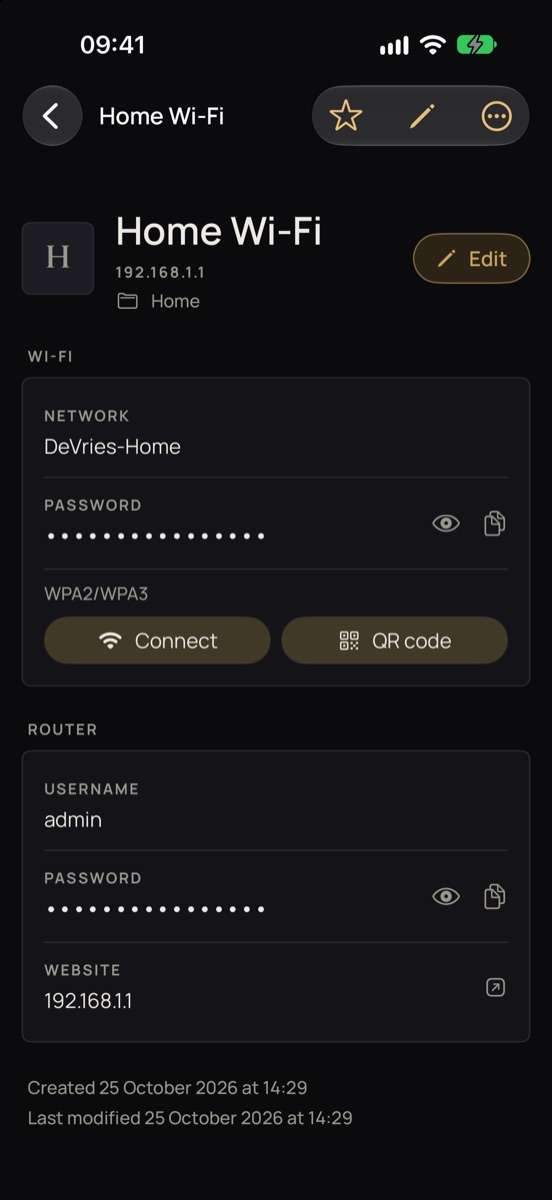
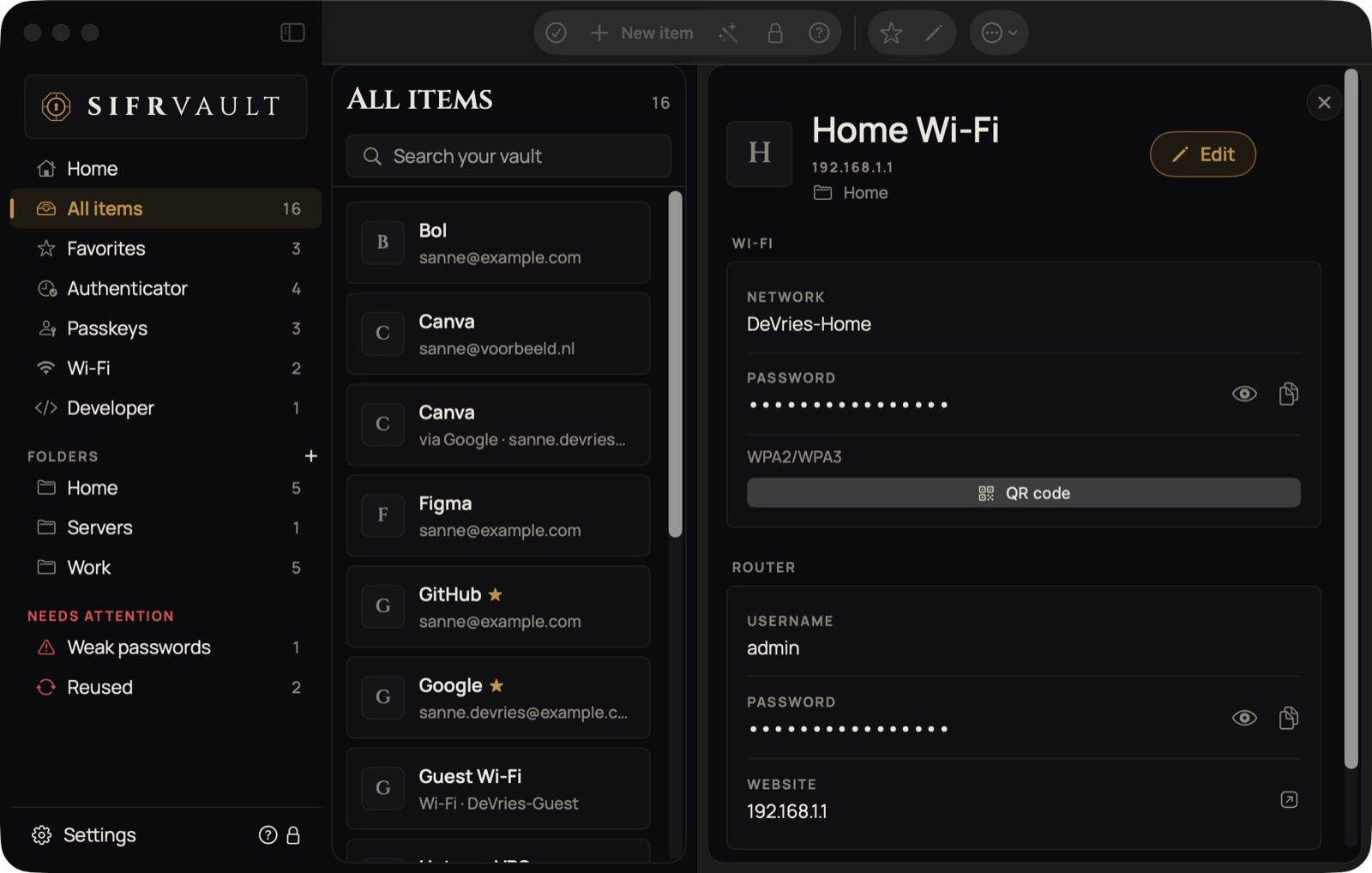
Save your Wi-Fi at home, at the office or for guests. On Home, tap the Wi-Fi tile (Mac: Wi-Fi in the sidebar).
- Choose Scan QR code and point the camera at the sticker on your router, or at the QR code another device shows. Or choose Enter manually.
- Check the network name, the security and the password, and tap Save.
If the network belongs to an item you already have, such as your router login, add the + Wi-Fi block to that item.
Connecting: open the item and tap Connect. iOS asks whether Sifrvault may connect and remembers the network after that. You don't have to type the password.
On the Mac you copy the password with one click; you connect through the Wi-Fi menu in the menu bar.
Sharing with guests: in the item, tap QR code. A guest points their camera at it and is connected, on Android too. The code is only shown on your screen and isn't stored anywhere.
Sifrvault can't read passwords that are already on your iPhone or Mac: Apple only allows its own Passwords app to do that. Look them up there and add them to Sifrvault, or scan the sticker on your router.
Sign in with Google, Apple or another account
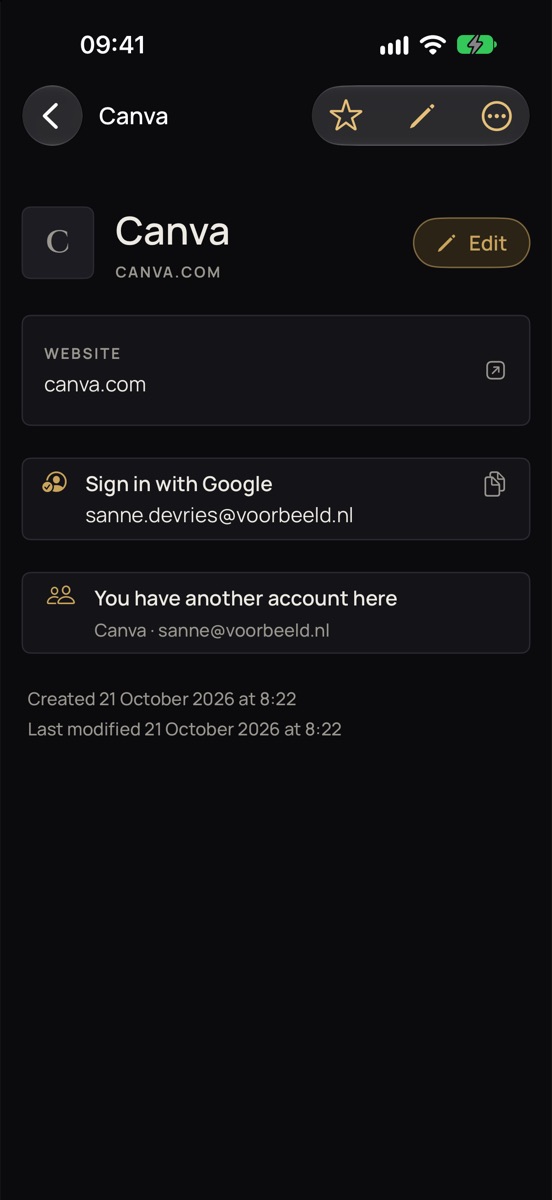
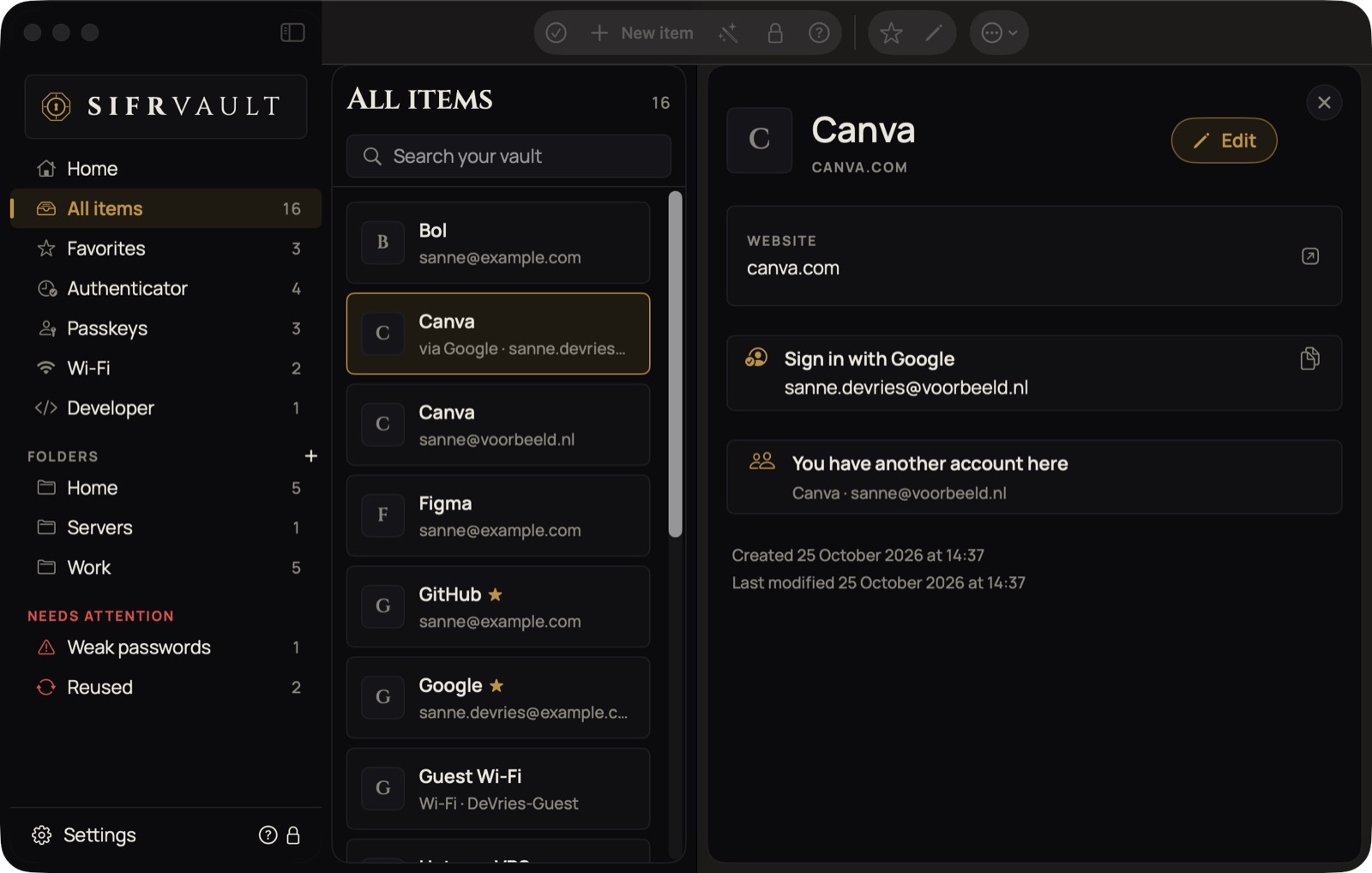
Do you sign in to a site with Sign in with Google, Apple, Microsoft or another account? Record it, so you always know later how you get in and won't accidentally create a second account.
- Open the item and tap the pencil.
- At the bottom, tap + Sign in with.
- Choose the service (Google, Apple, Microsoft, GitHub, Facebook, X, LinkedIn, Amazon or Other…) and the account. If the login for that service is already in your vault, you pick the account with one tap.
- Tap Save.
The list and search then show, for example, Canva · via Google · [email protected]. If you have another account for the same site, for example with your email address, the item shows You have another account here.
Create a strong password
Tap the magic wand (at the top, or next to the password field). Choose random characters or a passphrase of words. The bar shows how strong it is.
Does a site only allow a few special characters, for example only !@#$%^&*-? Under Allowed characters, pick a preset or type exactly the characters the site accepts. Sifrvault remembers your choice.
Search
Type a name, website, email address, username or folder in the search field (iPhone and iPad: at the top; Mac: in the sidebar under the logo, or press ⌘F). The best match is at the top: first items whose name starts that way, then websites, then the rest. A short word like ‘ing’ finds ING and mijnzakelijk.ing.nl, but not Vlaardingen.