
The home screen
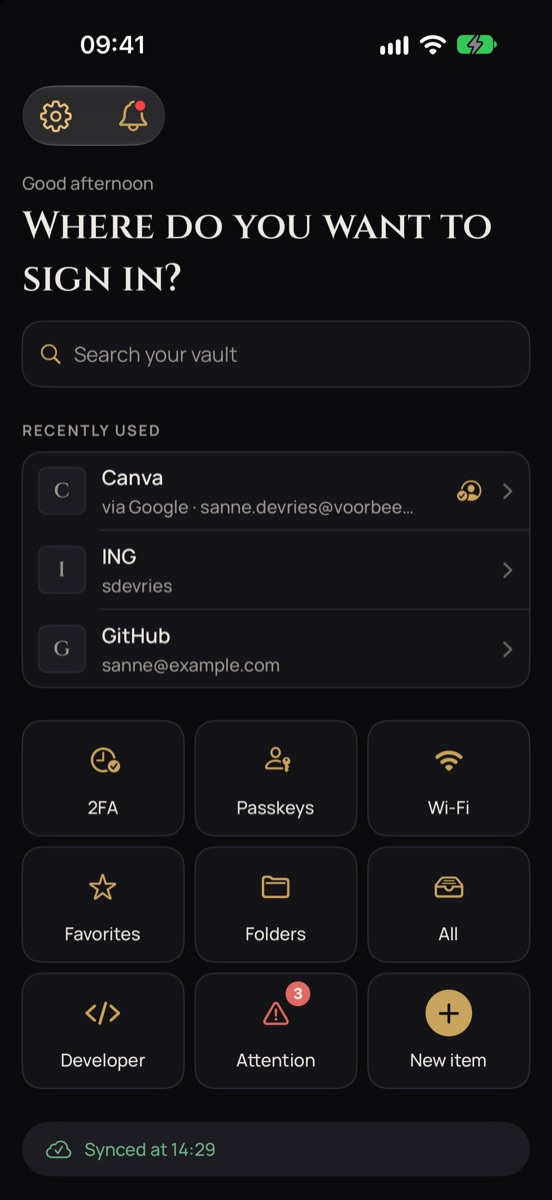
After unlocking you first see Home: a greeting, the question Where do you want to sign in? and a search field. Your logins only appear when you search; anyone looking over your shoulder sees nothing.
- Recently used: your three most recently opened or filled logins, tracked only on this device.
- Tiles: 2FA, Passkeys, Wi-Fi, Favorites, Folders, All, Developer, Attention and New item. Each section opens with ‹ Home at the top left to go back.
- Status: green when your vault is synced, red when syncing fails or you're not signed in to iCloud.
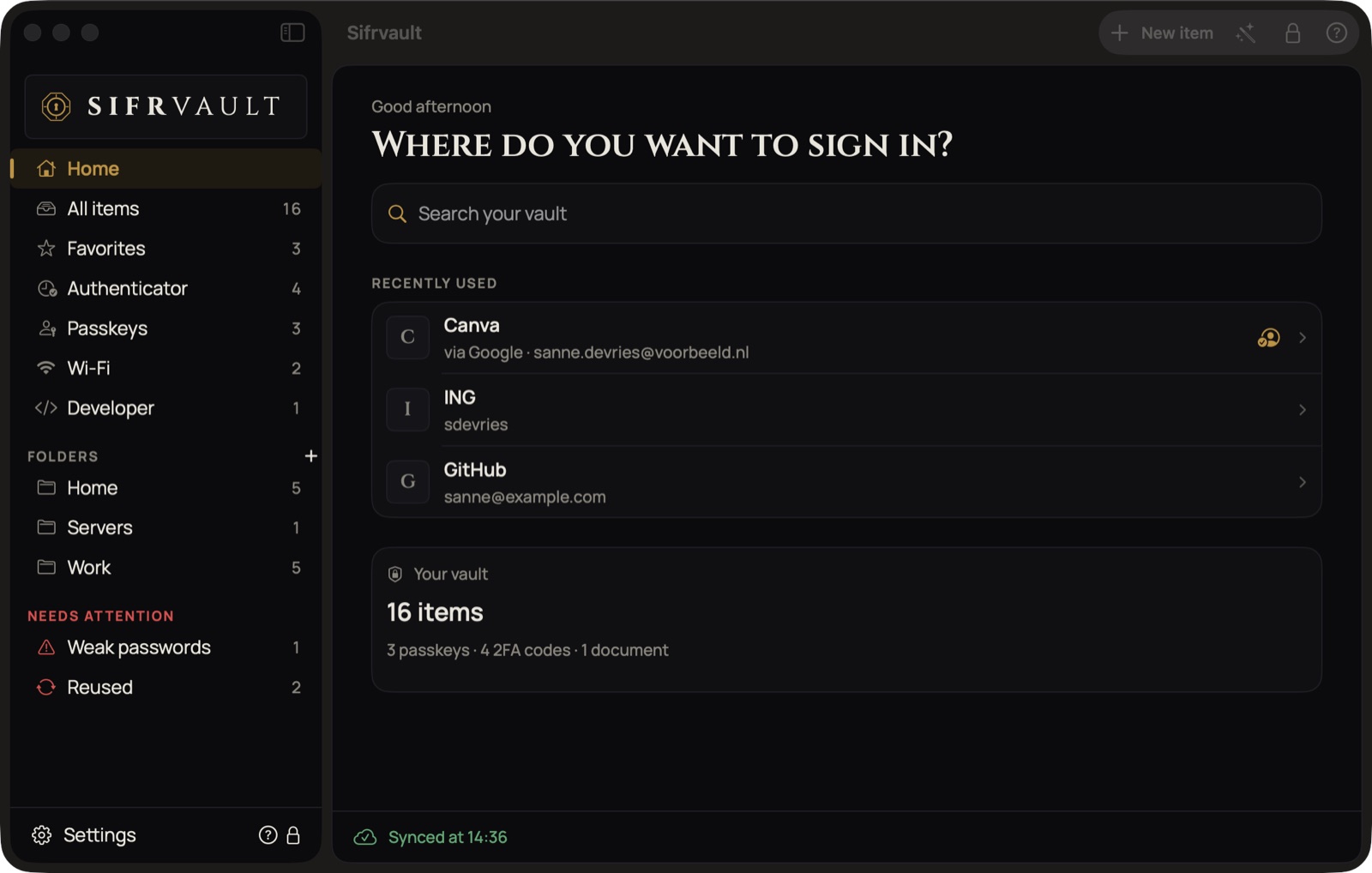
iPad: the same overview in two columns. When you pick a section, the list and the item appear side by side.
Sifrvault opens on Home, at the top of the sidebar: a greeting, the search field, your recently used logins and the sync status. So no item is open on screen when you start the app.
Type in the search field, choose with ↑↓, open with ↩ and go back with Esc. The rest of the sidebar works as always. At the top right are New item (⌘N), the generator, the lock and the question mark for help; at the bottom left Settings.
Create your vault
Sifrvault works without an account with us. Your vault lives on your device and in your own iCloud.
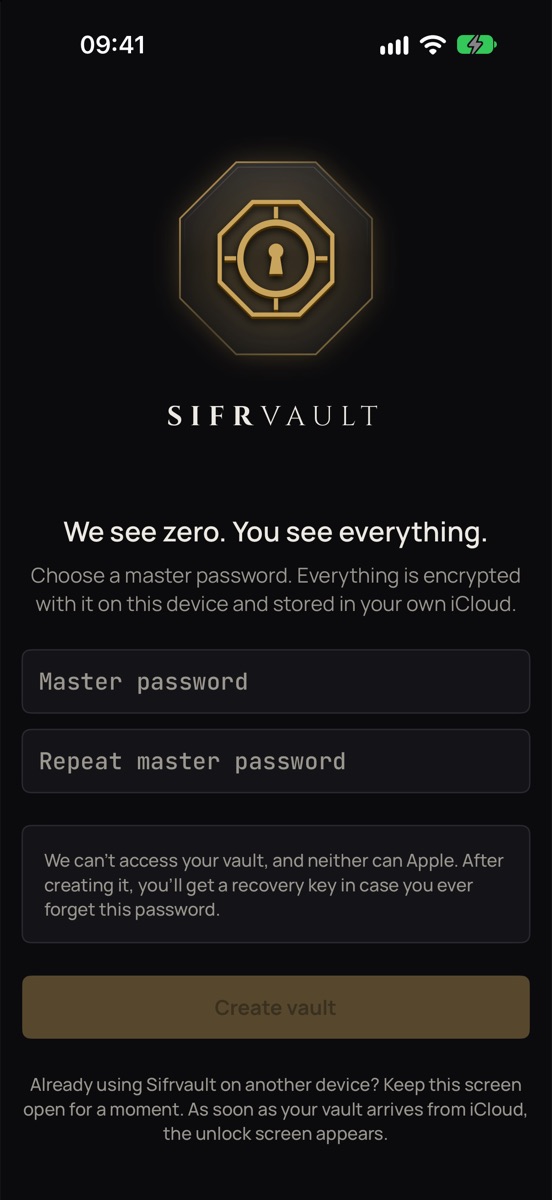
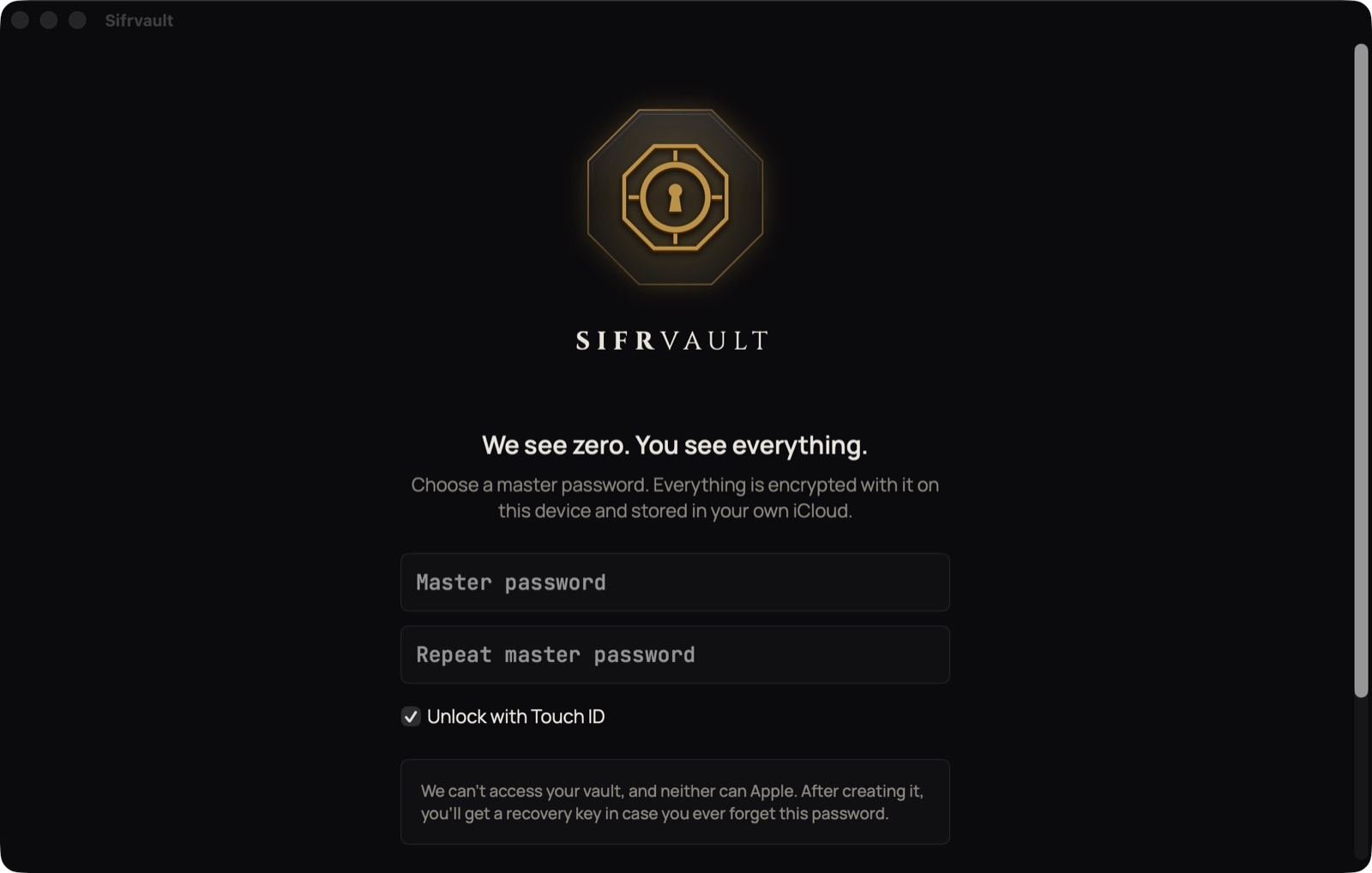
- Open Sifrvault.
- Choose a master password: at least 12 characters with uppercase letters, numbers or symbols, or a sentence of 16 characters or more, such as four words. Sifrvault refuses common words and frequently used passwords.
- Type it again and leave Unlock with Face ID (Mac: Touch ID) turned on.
- Tap Create vault.
Keep your recovery key safe
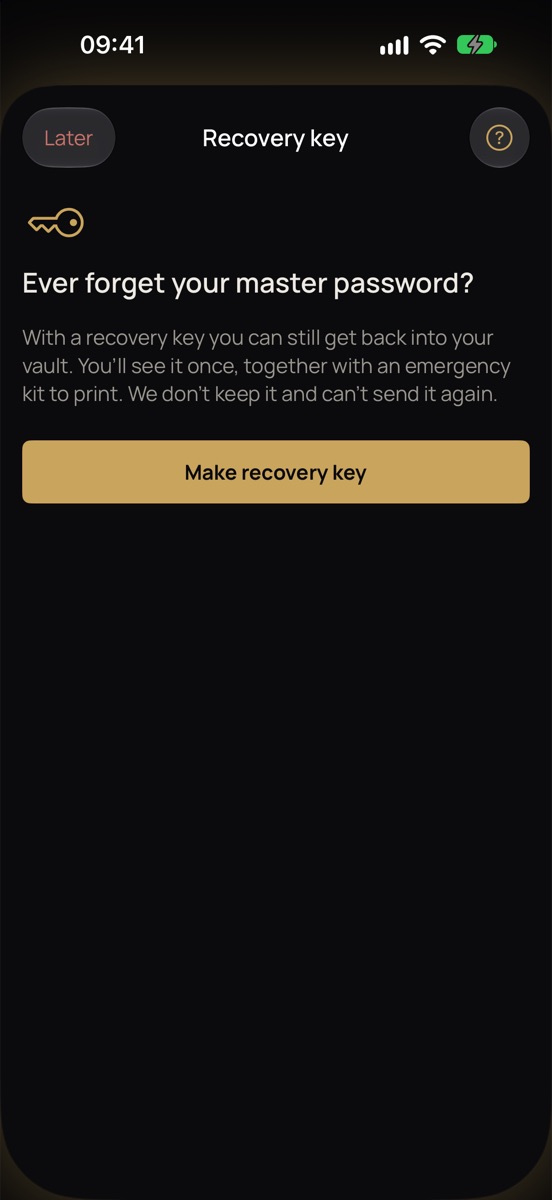
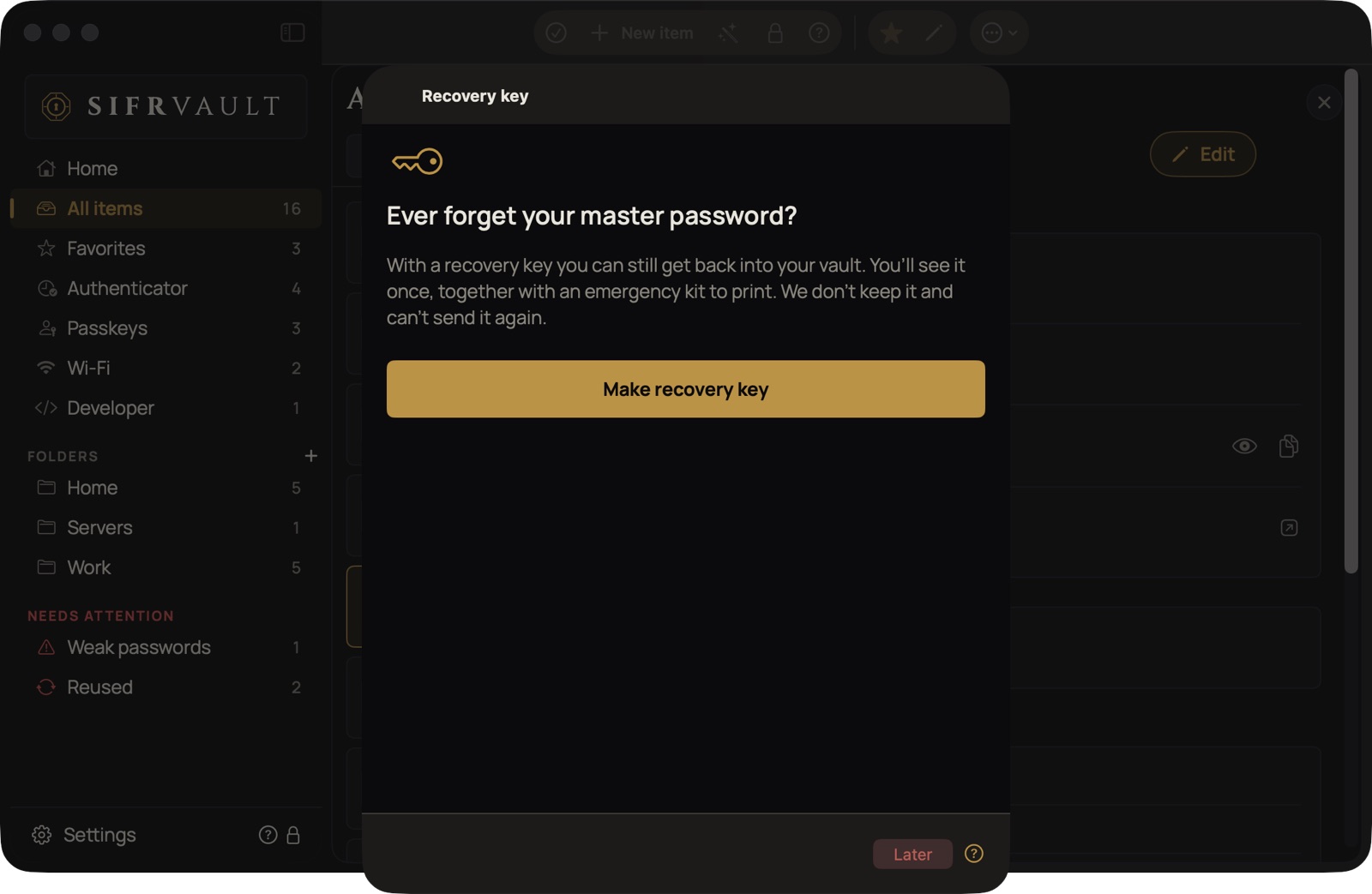
Right after that, Sifrvault asks whether you want to make a recovery key. Do it: it gets you back into your vault if you ever forget your master password.
- Tap Make recovery key.
- Tap Print emergency kit and keep the sheet in a safe place.
- Turn on I’ve stored my recovery key safely and tap Done.
Prefer a file? Choose Save as PDF…, but don’t put it in iCloud Drive or your email: anyone who takes over your Apple Account would then have your vault and the key. More about this under Forgot master password.
Unlocking
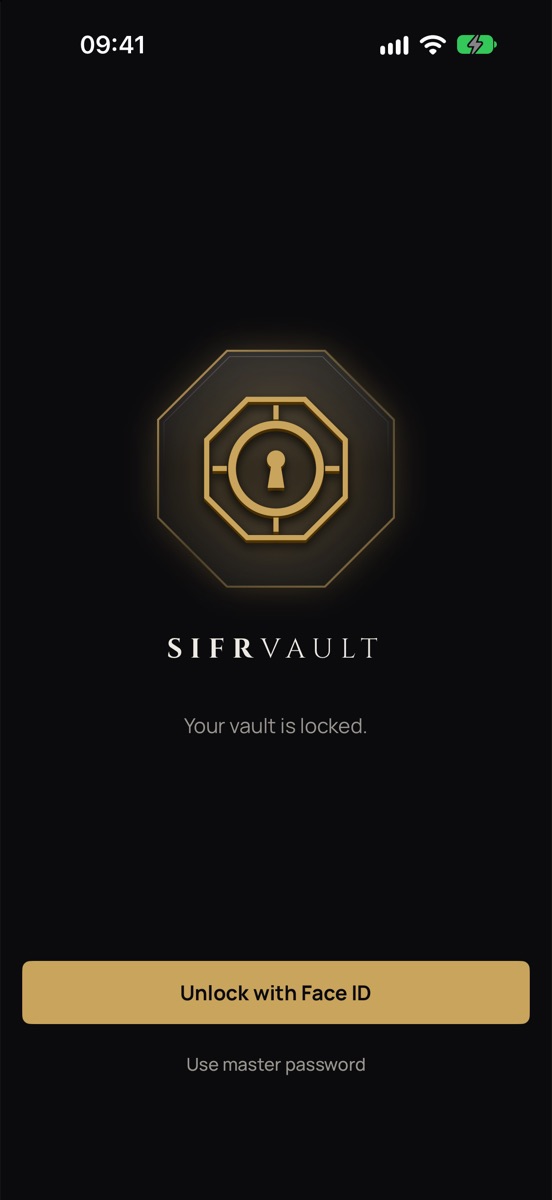
Open Sifrvault and look at your iPhone: Face ID opens the vault. If that doesn’t work, tap Use master password.
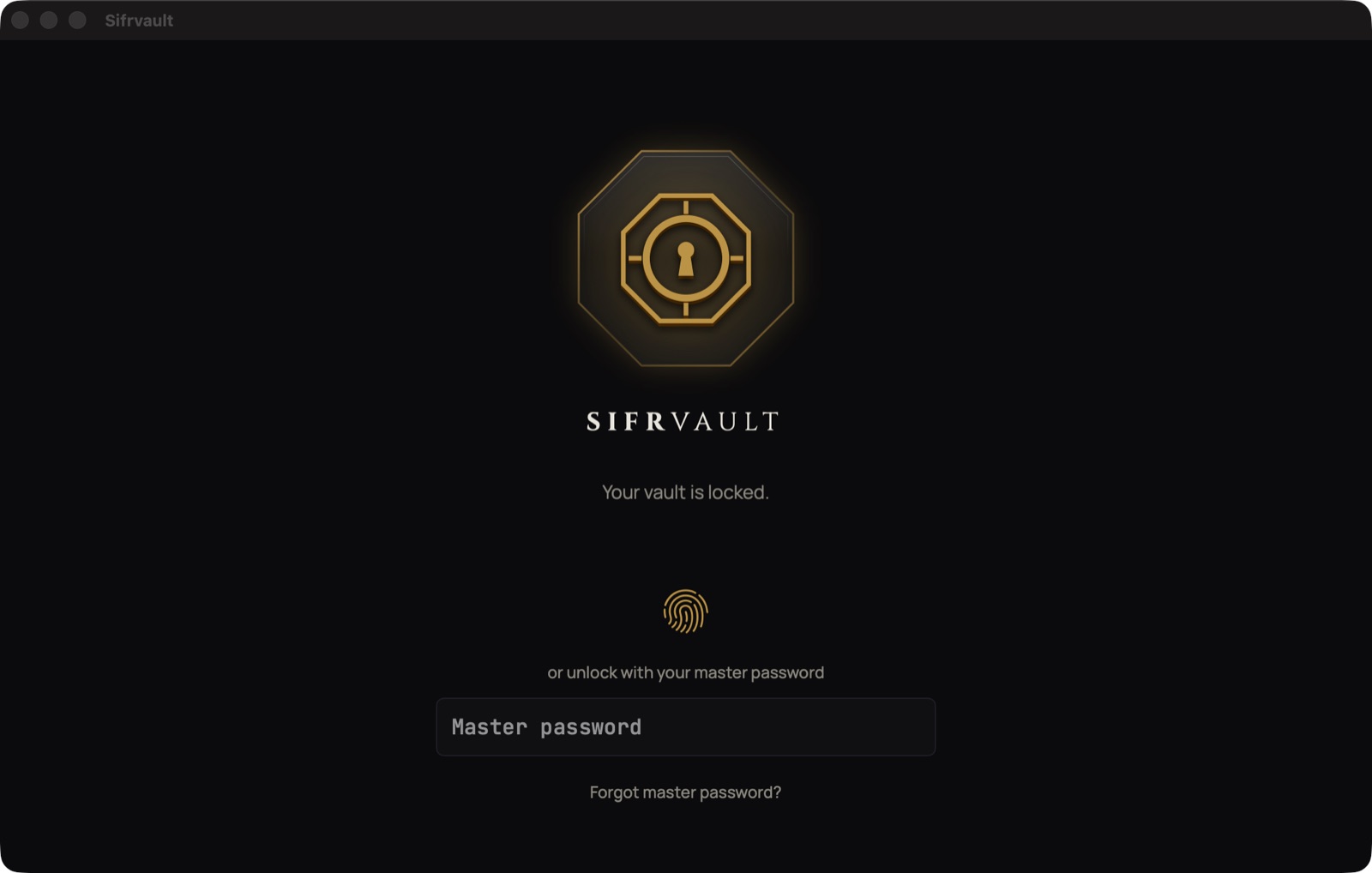
The lock screen shows the Touch ID icon. Place your finger on Touch ID and the vault opens, without a pop-up. Prefer typing? Click Use master password.
Sifrvault on a second device
- Make sure you’re signed in with the same Apple Account on the new device.
- Open Sifrvault and do not create a new vault.
- Keep the welcome screen open for a moment. As soon as iCloud has fetched your vault, the unlock screen appears.
- Unlock with your existing master password.