
Set a new master password
Is your vault still open (for example through Face ID)? Then choose Settings › Recovery › Forgot master password…. Otherwise, start on the unlock screen:
- On the unlock screen, tap Use master password and then Forgot master password?.
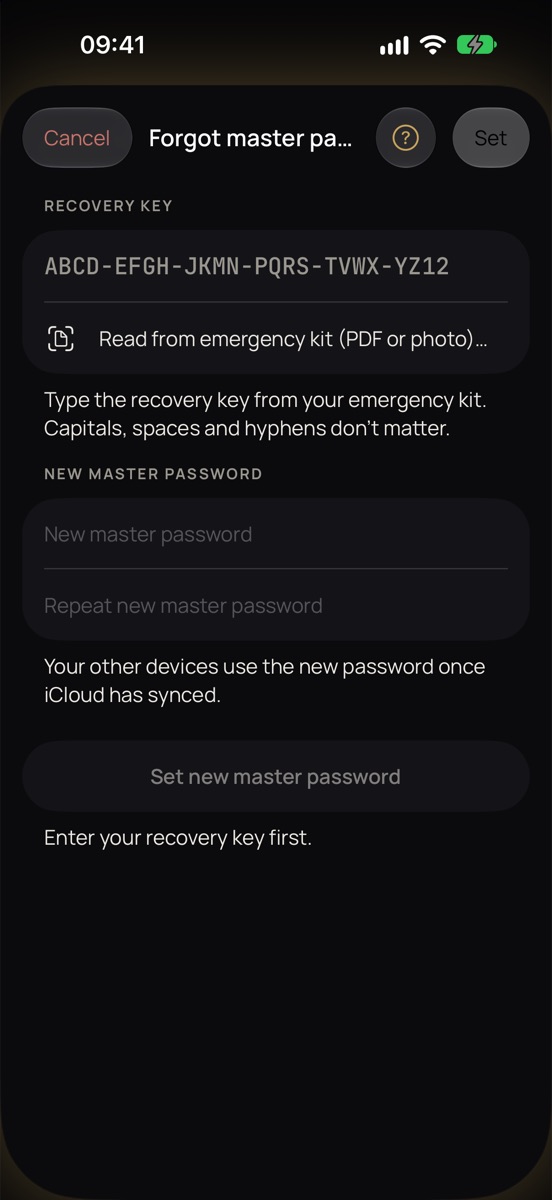
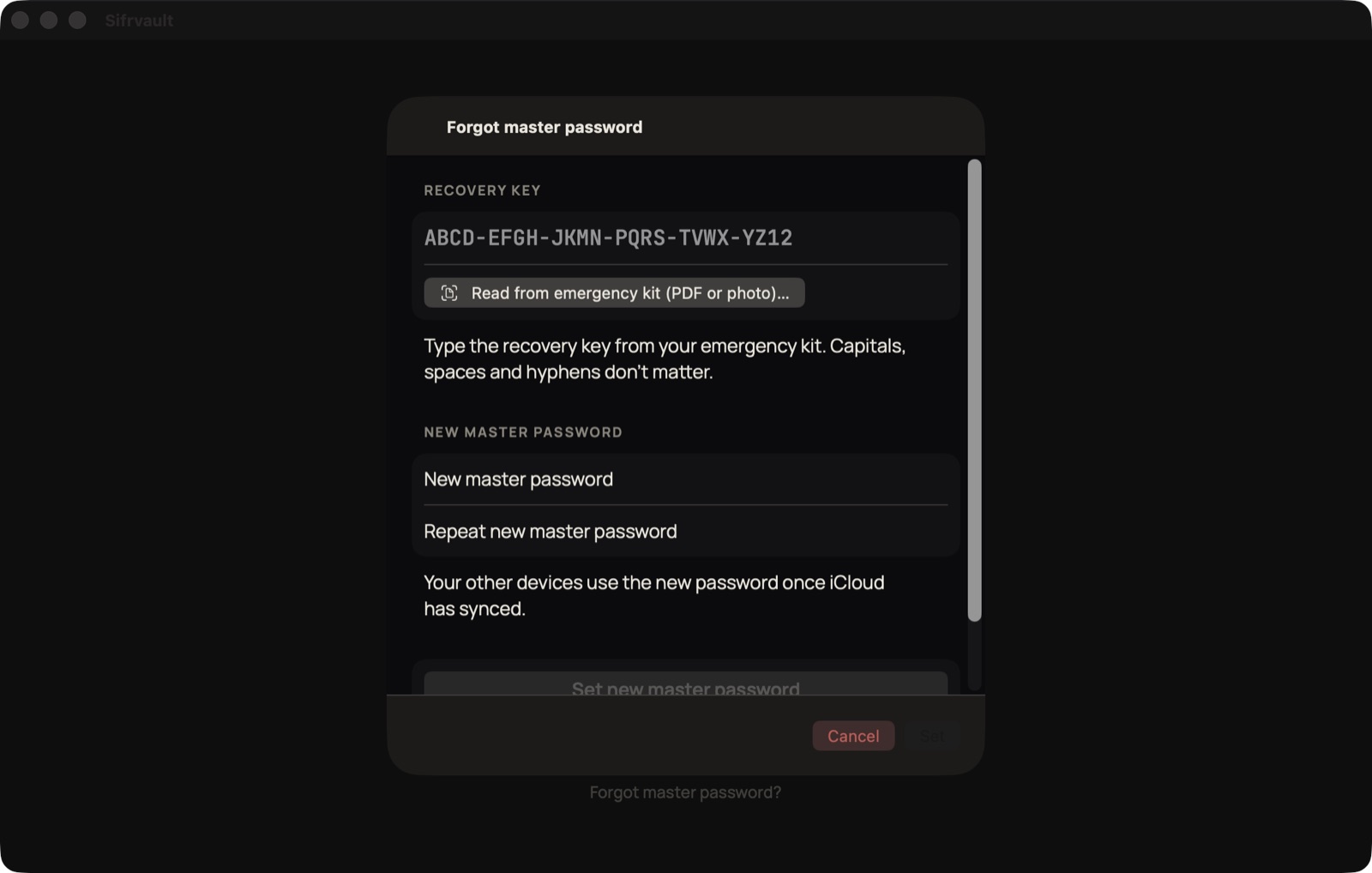
- Choose Recovery key and type the key from your emergency kit. Capitals, spaces and hyphens don’t matter. Or tap Read from emergency kit (PDF or photo) and choose your saved emergency kit or a photo of it: Sifrvault fills in the key for you.
- Is Face ID or Touch ID turned on on this device? Then you can choose that too, without a recovery key.
- Choose a new master password and tap Set. It applies to all your devices right away.
Your emergency kit
The emergency kit is a single A4 sheet with your recovery key and instructions. Print it and keep it in a safe place. Don’t keep it as a photo, in your email or in iCloud Drive: your vault is there too, so anyone who takes over your Apple Account would have everything. A PDF on a USB stick is fine; you can read it back in with Read from emergency kit. Lost it? Make a new recovery key in Settings › Recovery; the old one then stops working.
No recovery key and no Face ID?
Then nobody can open your vault anymore, not even us. That’s the flip side of ‘we see zero’. So make your recovery key now if you haven’t yet.