
Create a folder
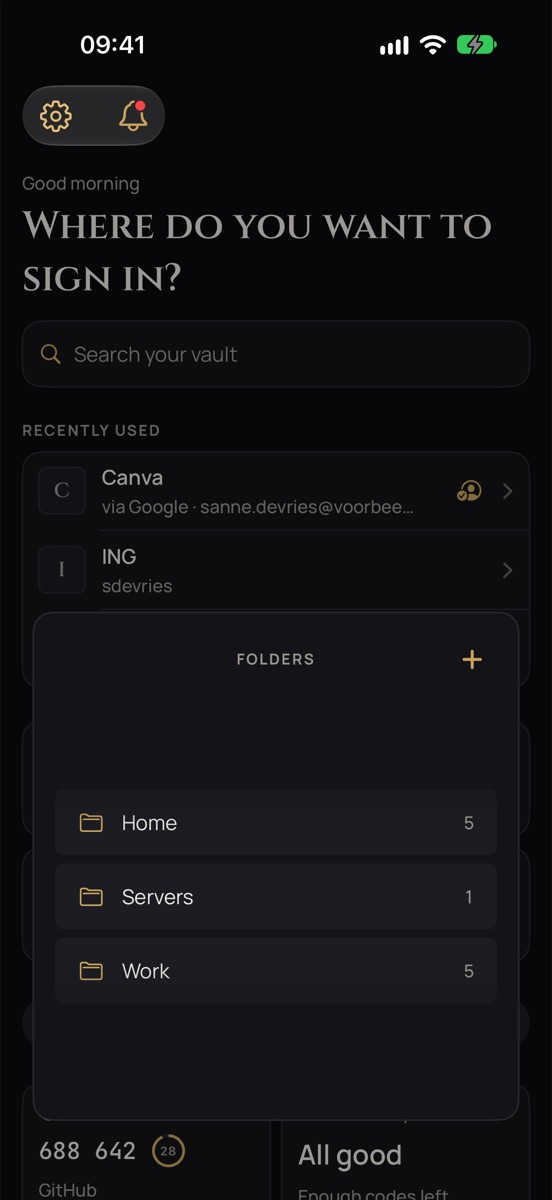
- On Home, tap the Folders tile and then + at the top right of the folder panel (iPad: tap the Folders tile and choose New folder…).
- Type the name and tap Create.
- The list switches to selection mode: tap the items that should go in.
- Tap Put in ‘name’ at the bottom.
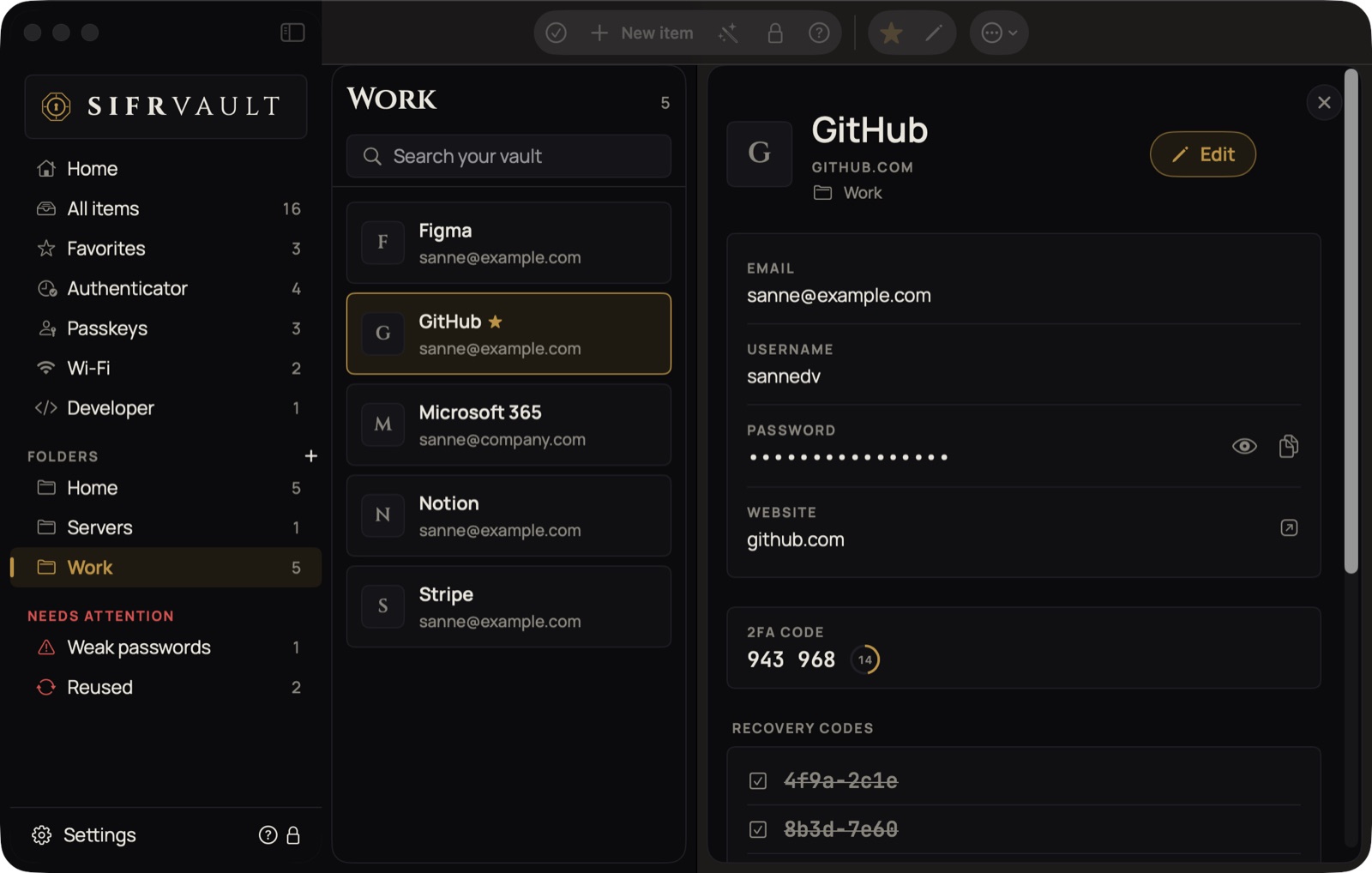
- In the sidebar, click + next to Folders.
- Type the name and click Create.
- Click the items that should go in and click Put in ‘name’ at the bottom.
You can also choose a folder from an item: pencil › Folder › New folder…. A folder exists as long as there’s an item in it. Items without a folder are simply under All.
Move several items at once
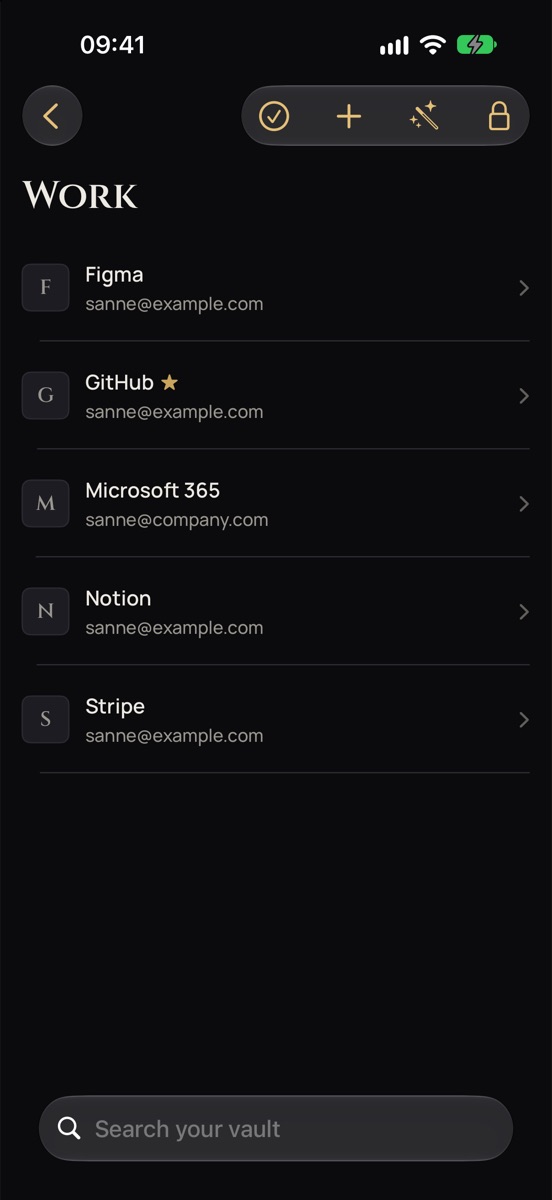
- Tap the checkmark at the top (Select).
- Tap the items you want to move.
- Tap Move to… at the bottom and choose a folder, New folder… or Remove from folder.
Done, or changed your mind? Tap Cancel in the bar at the bottom.


Open a folder
- On Home, tap the Folders tile.
- Browse your folders and tap the one you’re looking for.
- The folder name appears at the top of the list. Use ‹ Home at the top left to go back.
iPad: on Home, tap the Folders tile and choose the folder.
Your folders are in the sidebar under Folders. Click a folder to see only its items.
Favorites
Tap the star in an item. Your favorites are under Favorites, and at the top of quick search on the Mac.