All your codes in one place
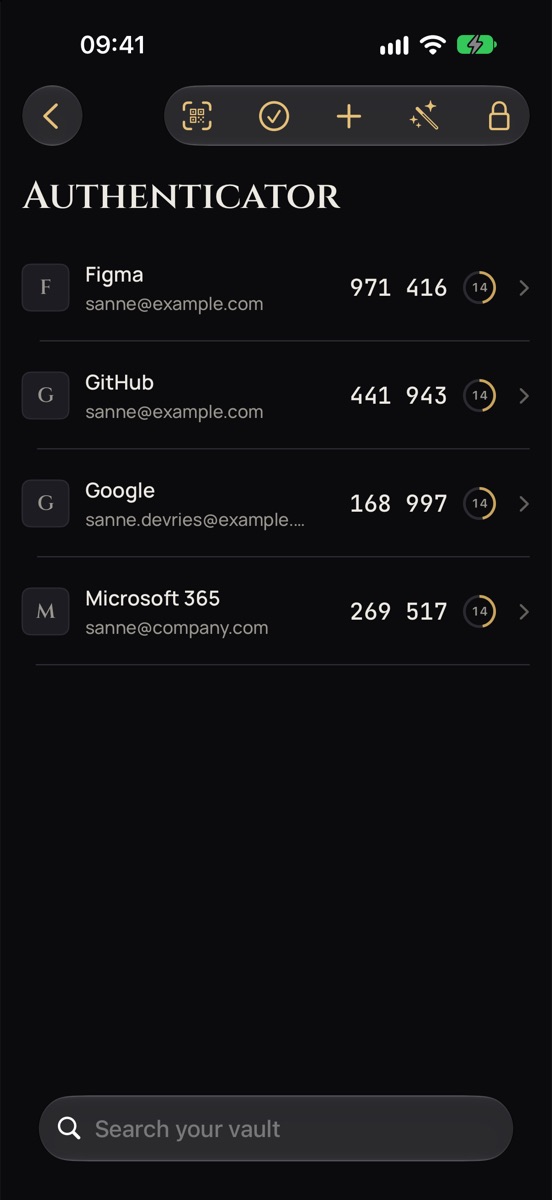
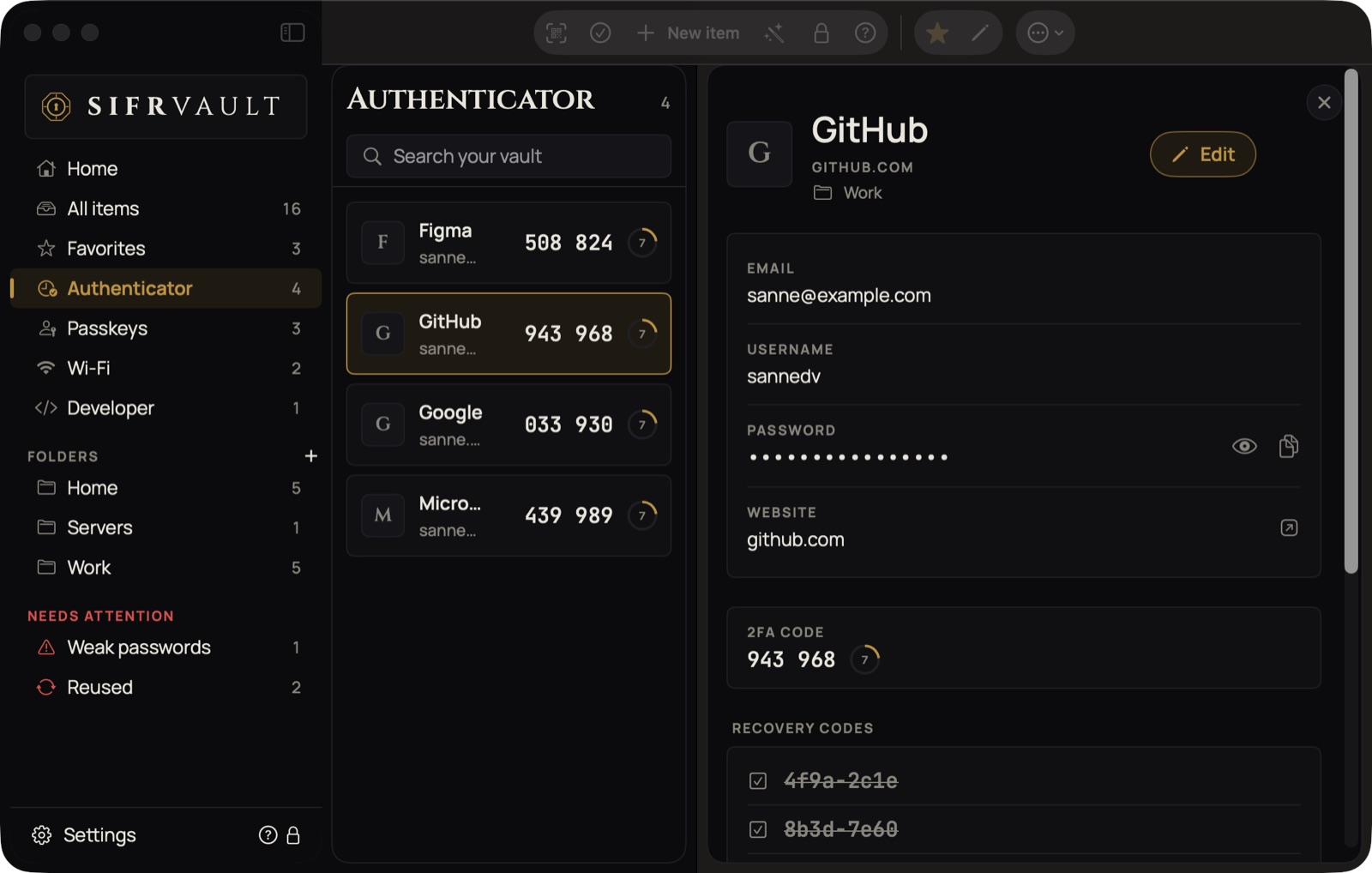
Under 2FA (Mac: Authenticator in the sidebar) all your codes are listed, with a ring that counts down. Tap a code to copy it (Mac: click the card).
Scan a QR code
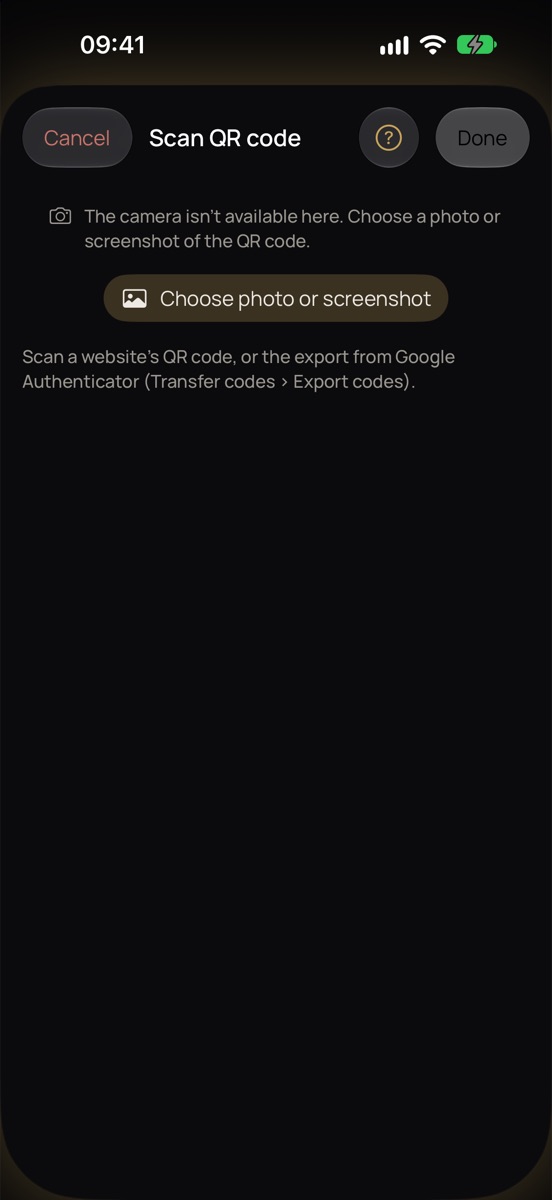
- Go to 2FA and tap the QR icon at the top.
- Point your camera at the website’s QR code, or choose a screenshot from Photos.
- Sifrvault recognizes the code and adds it right away; you don’t have to confirm anything. If the code belongs to a login you already have, Sifrvault links it to that login.
An export from Google Authenticator spread over several QR codes? Sifrvault waits until you’ve scanned them all and then adds them in one go. If something doesn’t work, tap Done.
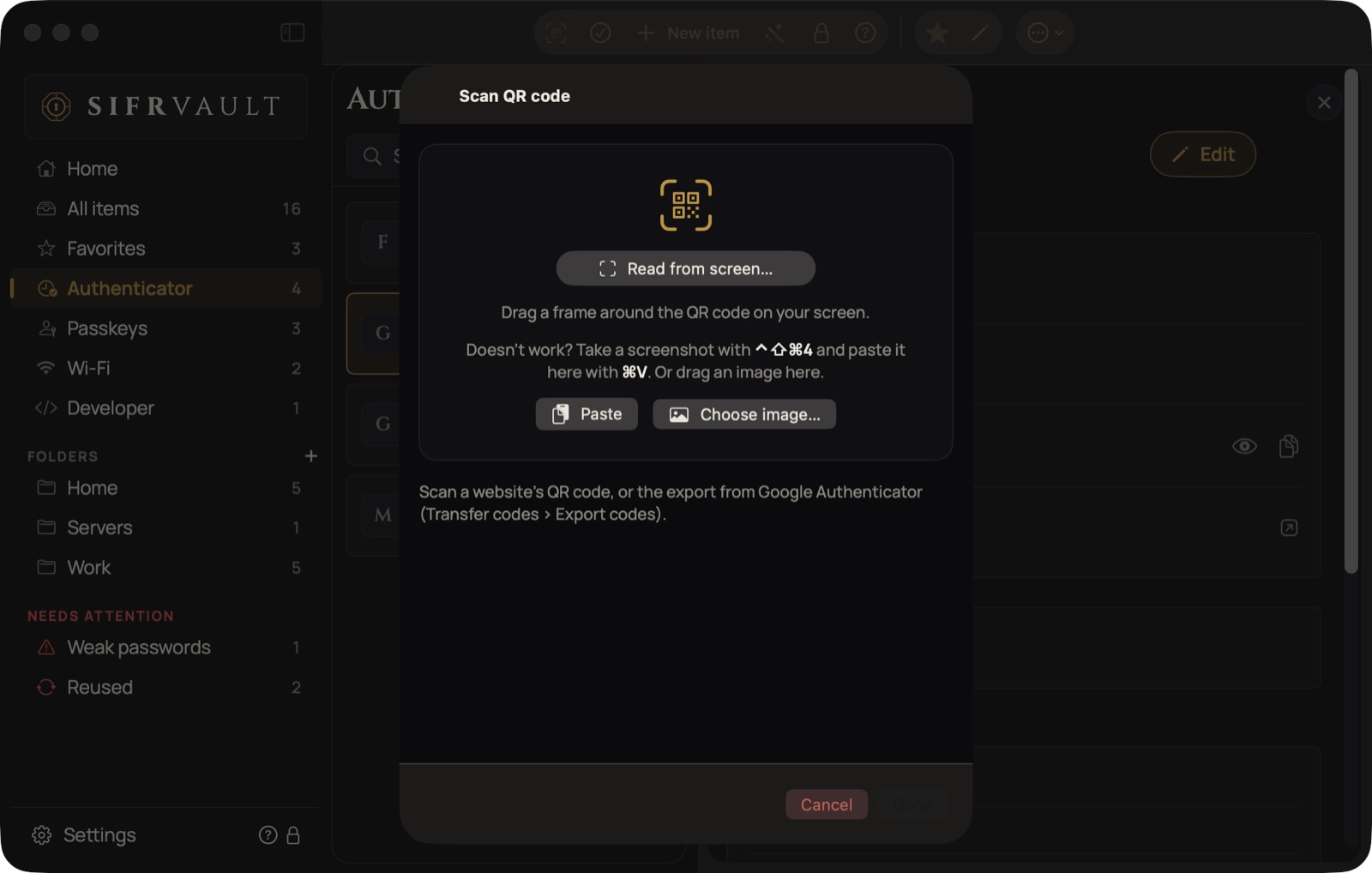
- Go to Authenticator and click the QR icon.
- Click Read from screen…. Sifrvault steps aside; drag a frame around the QR code on your screen.
- The code is recognized and added right away.
Doesn’t work? Take a screenshot with ⌃⇧⌘4 and press ⌘V in Sifrvault, or drag an image into the window. You read recovery codes the same way: the Recovery codes block has the same button.
Switching from Google Authenticator
- Open Google Authenticator and choose Transfer codes › Export codes.
- Scan the QR code(s) in Sifrvault as above. If there are several, Sifrvault keeps track of how many you’ve scanned.
- Tap Add. You then see how many codes are new and how many were linked to existing logins.
- Sign in to a few services with a code from Sifrvault. If everything works, you can delete the codes in Google Authenticator.
Microsoft Authenticator can’t export. Scan the QR code again for each website, through that website’s 2FA settings.
2FA codes on your Apple Watch
- Install Sifrvault on your Watch: open the Watch app on your iPhone and tap Install next to Sifrvault.
- Open Sifrvault on your iPhone, unlock and turn on Settings › Apple Watch.
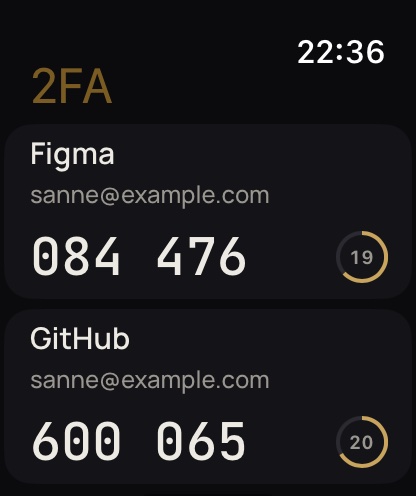
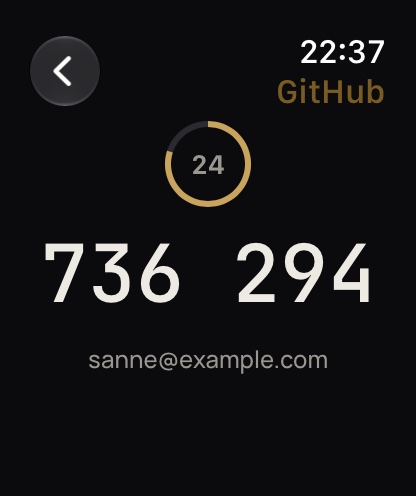
- Open Sifrvault on your Watch. You see all your 2FA codes with a ring that counts down; tap a code to see it large.
Only the 2FA keys go to your Watch, with the name and username. No passwords. They go directly from your iPhone to your Watch, not through iCloud or a server, and are stored in your Watch’s keychain. The codes are calculated on the Watch itself, so they also work when your iPhone isn’t nearby.
Your Watch needs a passcode; without one, Sifrvault doesn’t show any codes. If you take your Watch off, the codes can only be seen again once you unlock it. Wrist down (always-on display): the codes are hidden.
If you change something in your 2FA codes, your Watch gets the new list the next time your vault is open on your iPhone. Turn the switch off and the codes are erased from your Watch.
Apple Watch works together with Sifrvault on your iPhone. Turn on Settings › Apple Watch there.