Turning it on
- Open Settings › General › AutoFill & Passwords.
- Turn on Sifrvault.
- Open Sifrvault once and unlock, so your passwords are ready.
- Open System Settings › General › AutoFill & Passwords.
- Turn on Sifrvault. That’s for Safari.
- Using Chrome, Edge or Brave? Install the Sifrvault extension and connect it to the app once: see Connecting the browser extension below.
- Open Sifrvault once and unlock.
Filling in
In Safari, Chrome, Edge or an app, tap the username or password field. Above the keyboard, choose Sifrvault or the suggested account and confirm with Face ID. Sifrvault fills in 2FA codes the same way.
In Safari, click the password field and choose Sifrvault.
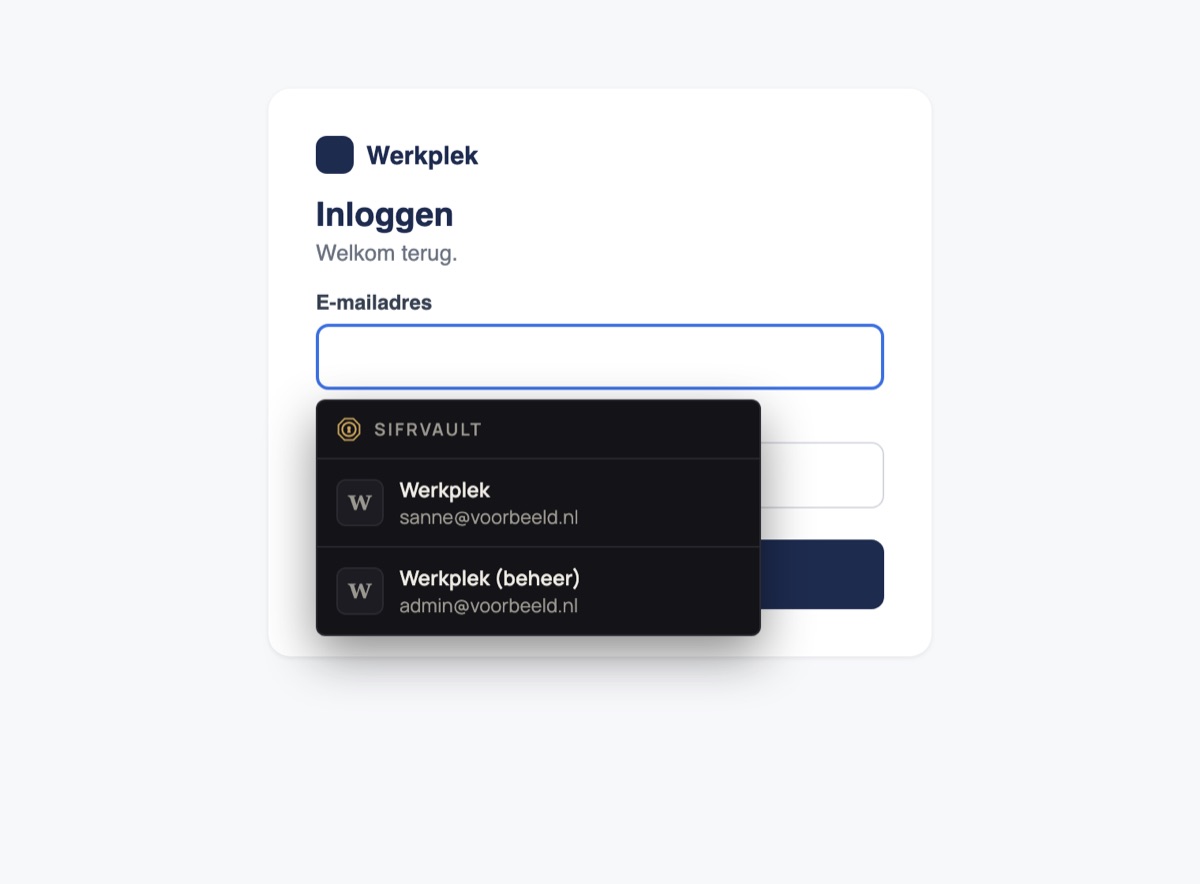
In Chrome, Edge and Brave the extension puts a Sifrvault button in the login field. Click it and choose your account: username and password are filled in. If your vault is locked, the extension opens it with Touch ID. The icon at the top right of the browser shows all logins for the site.
The extension only works with the Sifrvault app on the same Mac and never sends anything to the internet. Prefer no extension? Use quick search with ⇧⌘Space and paste with ⌘V.
Connecting the browser extension (Mac)
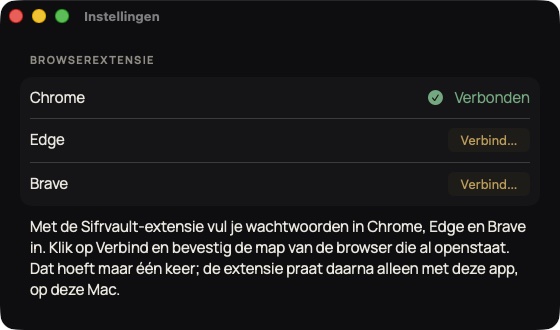
The extension for Chrome, Edge and Brave talks to the Sifrvault app on your Mac. Because Sifrvault runs in the App Store’s protected environment, you need to give permission once to connect the browser to the app. It takes ten seconds.
- Install the Sifrvault extension in Chrome, Edge or Brave.
- Open Sifrvault on your Mac and go to Settings (menu Sifrvault › Settings… or ⌘,).
- Find the Browser extension block and click Connect… next to your browser.
- A window opens that’s already in the right folder (Library › Application Support › Google › Chrome). Don’t choose anything else: click the Connect Chrome button at the bottom right right away.
- Connected now appears in green next to your browser. Reload the login page and click the username field.
Using several browsers? Repeat steps 3 and 4 for each browser. You only need to do this once; the connection stays after a Sifrvault update.
The extension doesn’t work?
- ‘Sifrvault app not found’
- The browser isn’t connected yet, or was connected with an old version. Follow the steps under Connecting the browser extension (again) and reload the page.
- ‘Sifrvault has been updated. Reload this page.’
- The extension was just updated while the page was open. Reload the page (⌘R).
- ‘Sifrvault isn’t responding’
- The app isn’t running or is stuck. Open Sifrvault, or quit the app with ⌘Q and open it again.
- Still not working? Restart your browser. After a background update, Sifrvault only accepts the browser again once it has been restarted.
- ‘Not trusted by Enhanced Safe Browsing’
- Chrome shows this for every extension from a new developer, and only if you have Enhanced Safe Browsing turned on. It isn’t a malware warning: it disappears by itself after a few months in the Chrome Web Store. You can safely install the extension.
- ‘That’s not the Chrome folder’
- A different folder was chosen in the window. Click Connect… again and click Connect Chrome right away, without clicking a folder first.
- Nothing appears at the login field
- There’s no login for this site in your vault yet. After you sign in, Sifrvault asks whether you want to save it. You can also click the Sifrvault icon at the top right of the browser.
- Your vault is locked
- In the extension’s window, click Unlock with Touch ID.
Saving new logins from the browser
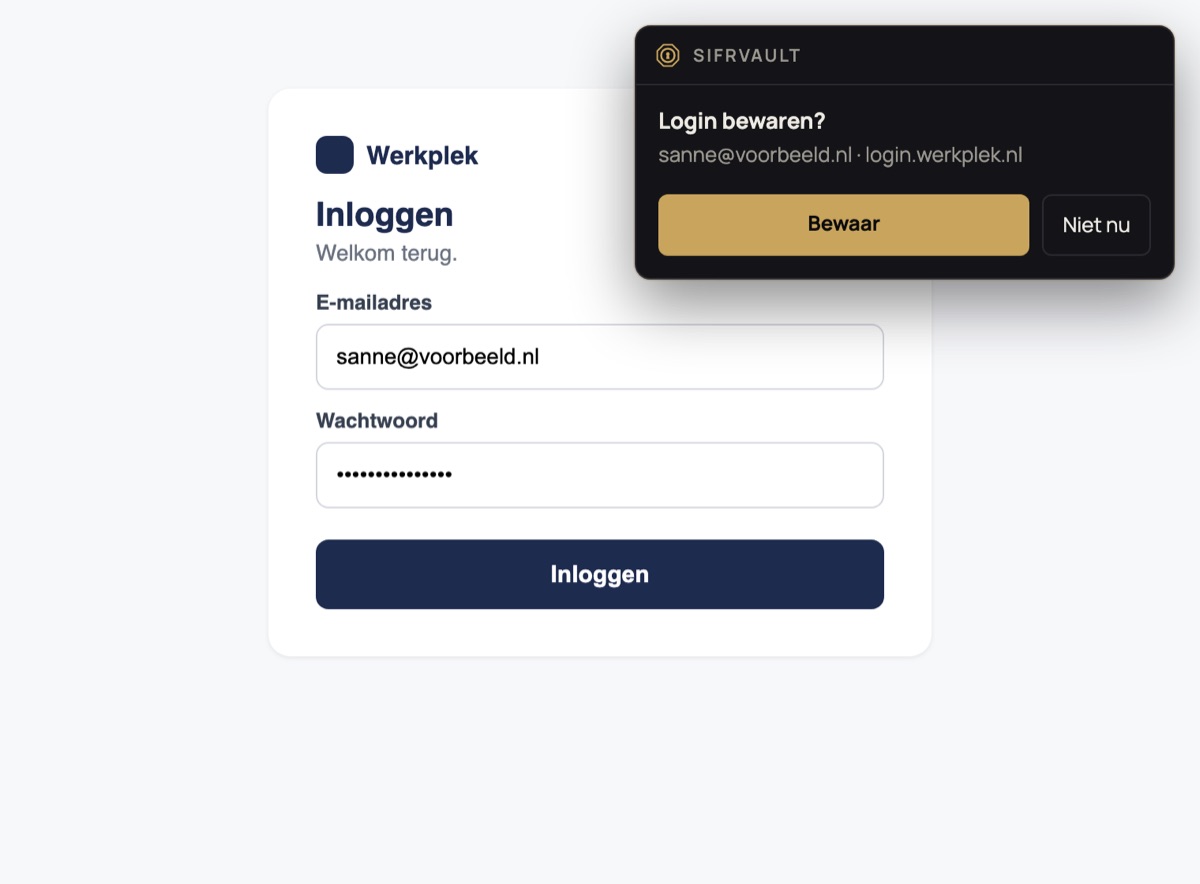
- After you sign in Sifrvault asks at the top right: Save login? If the password has changed: Update password?
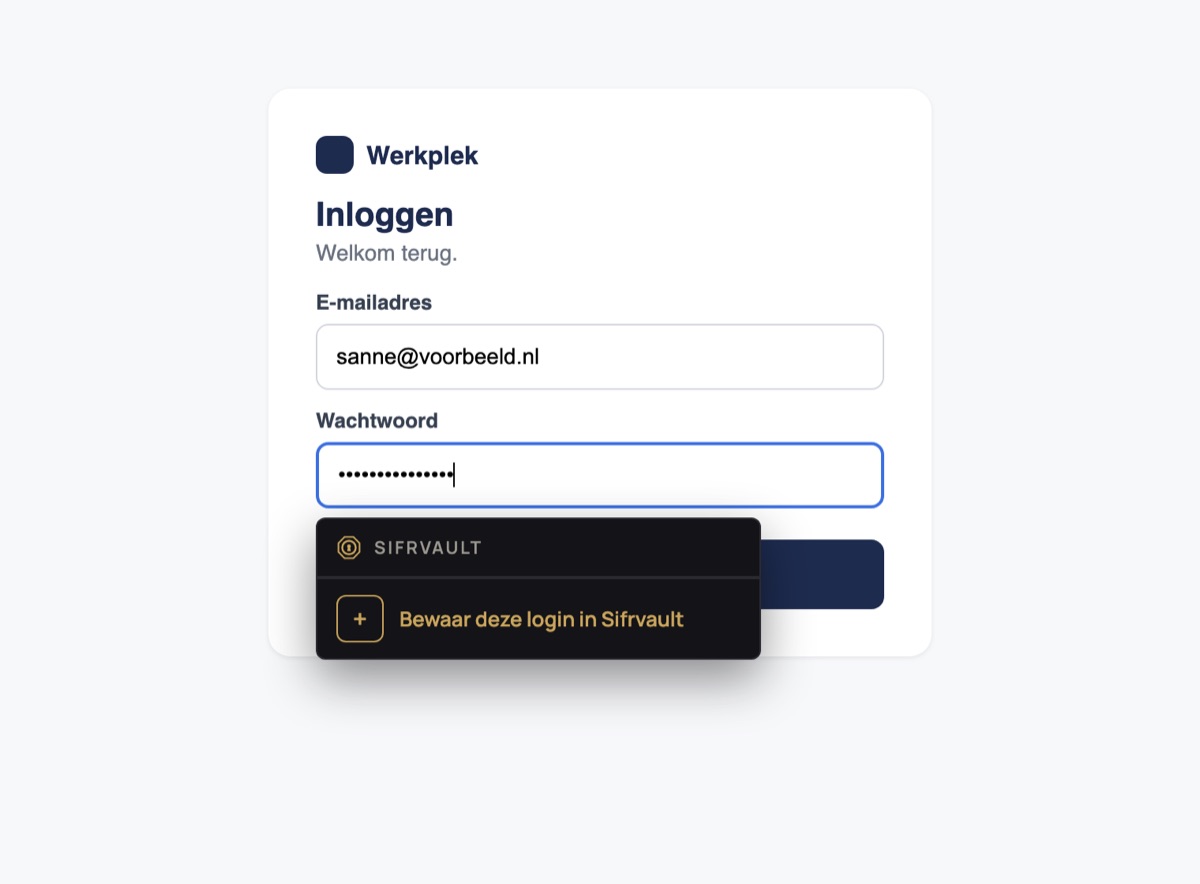
- Already typed but not signed in yet? Click the password field and choose + Save this login in Sifrvault.
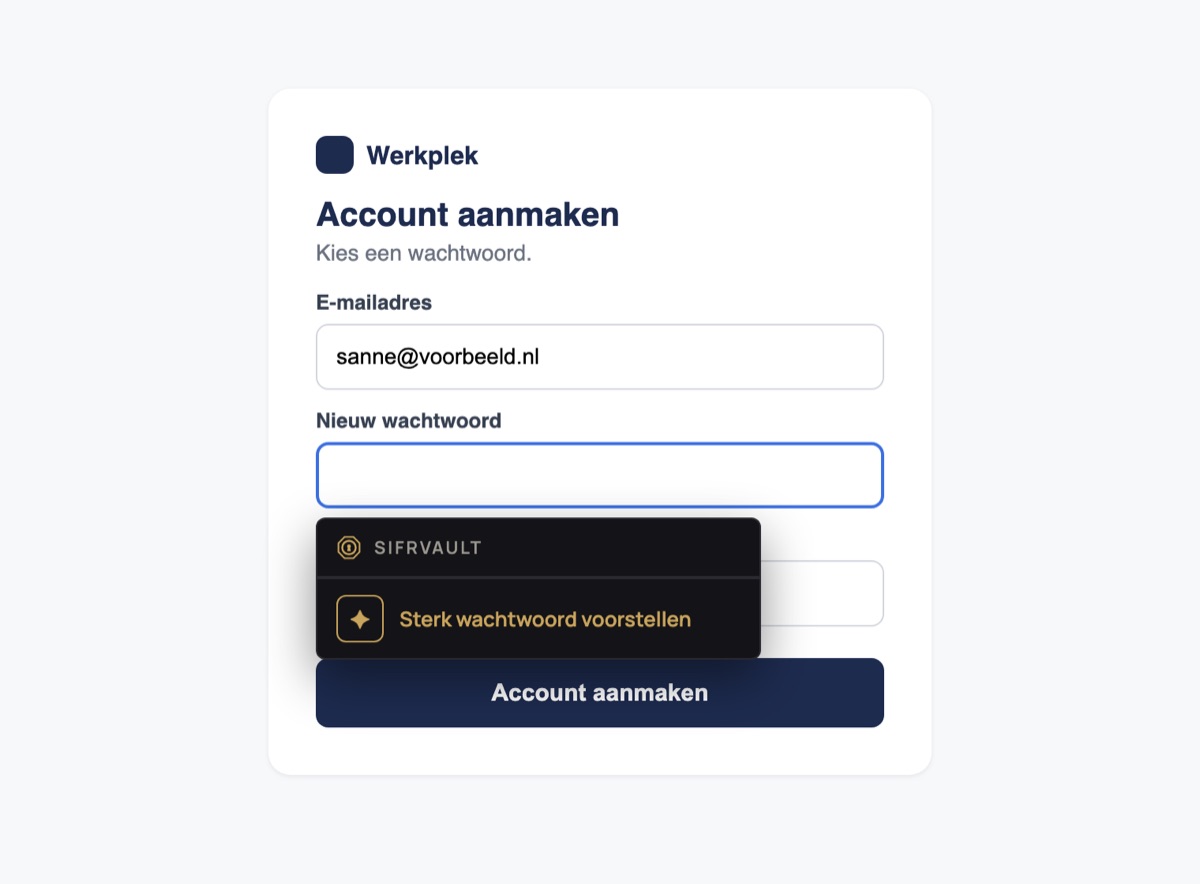
- Creating a new account? Choose Suggest strong password in the password field. Sifrvault fills in a strong password and asks after signing up whether you want to save it.