
Transfer directly (iOS and macOS 26)
On iPhone, iPad and Mac with iOS or macOS 26 or later you transfer your data directly from app to app, without a file. Everything goes encrypted through the system; nothing ends up unencrypted on your disk.
To Sifrvault
- Open your current app, for example Apple Passwords, and choose the option to export your data to another app.
- Choose Sifrvault and the parts you want to transfer.
- Sifrvault opens. If your vault is locked, unlock it; then you see what was imported.
From Sifrvault to another app
- In Sifrvault, open Settings › Transfer to another app… and confirm with Face ID or Touch ID.
- Choose the app you want to move to.
Which data comes along also depends on the other app. Passwords, 2FA codes and notes almost always come along; passkeys only if the other app accepts them (Apple Passwords doesn’t yet). Documents are not included in a transfer. Your vault in Sifrvault stays as it is.
Importing from a file
- Export your passwords in your current app (see below).
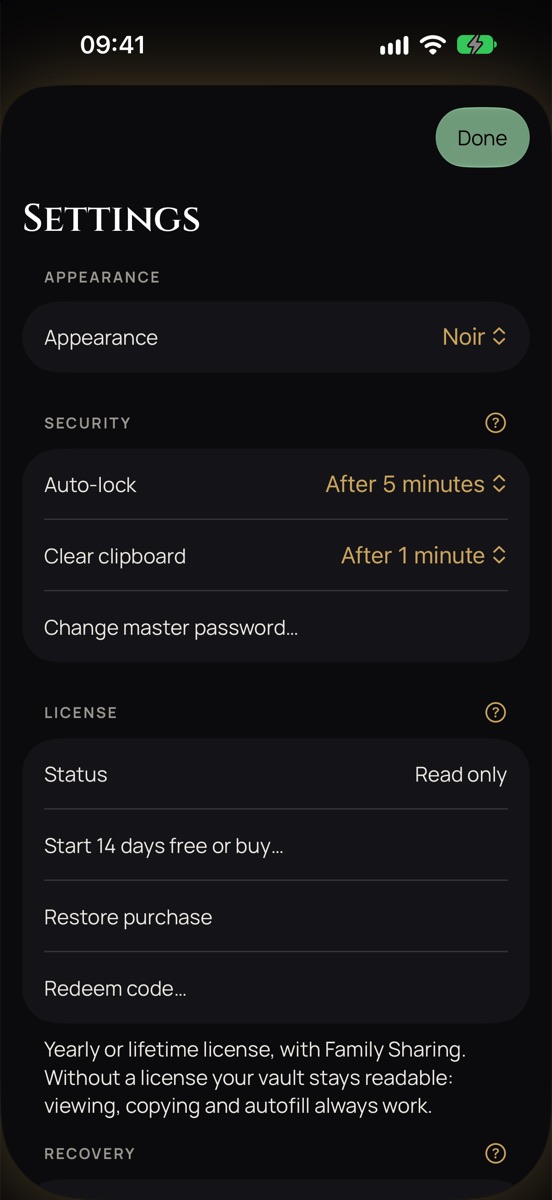
- In Sifrvault, open Settings (gear) and tap Import passwords….
- Choose the file. If it’s encrypted (Bitwarden), Sifrvault asks for the export password.
- Delete the export file afterwards. It contains your passwords unencrypted.
- Export your passwords in your current app.
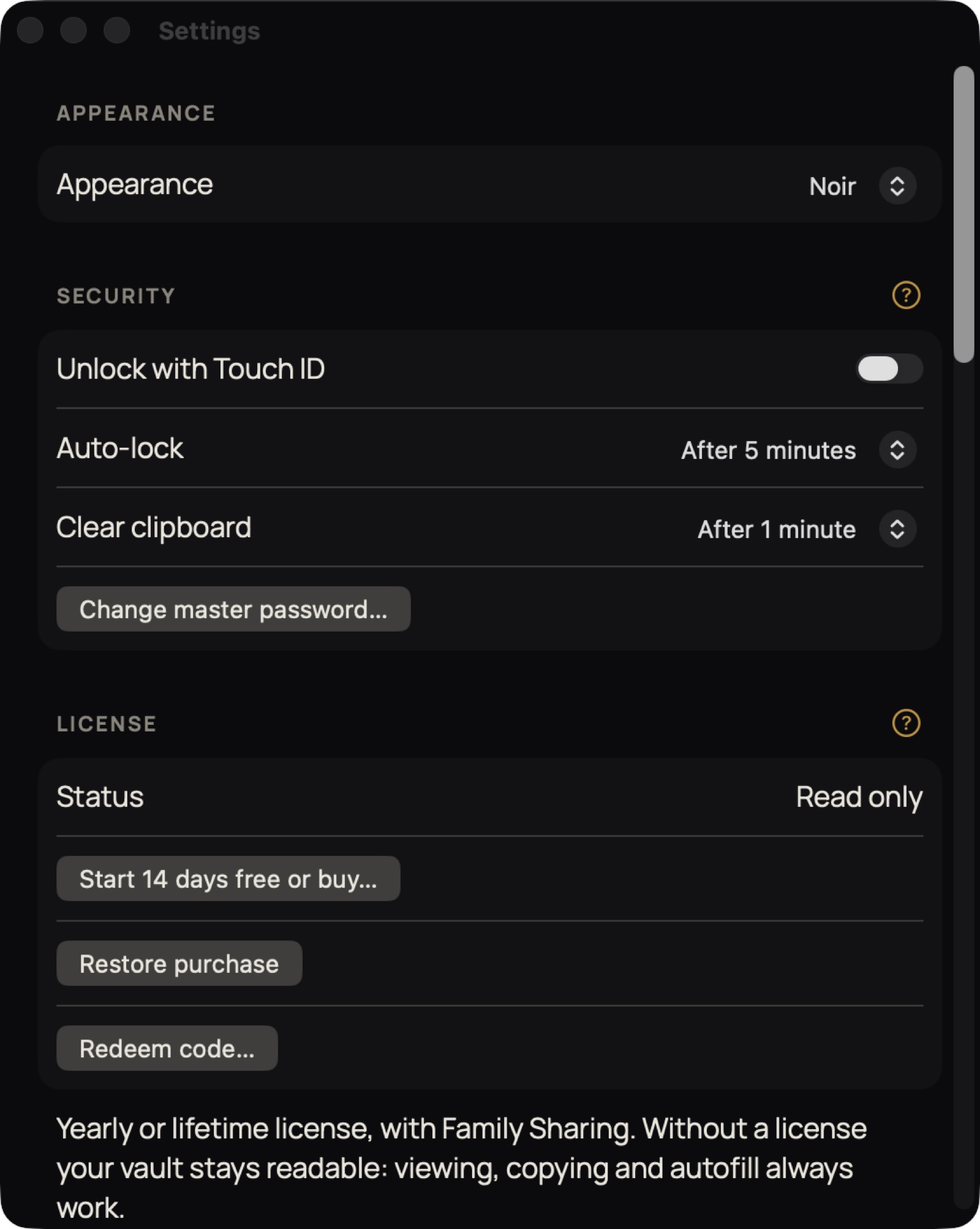
- In Sifrvault, choose File › Import… (⇧⌘I) and choose the file.
- Delete the export file afterwards.
Where do I find the export?
- Apple Passwords
- Mac: Passwords app › File › Export All Passwords.
- Chrome, Edge, Brave
- Settings › Passwords (Password Manager) › Export.
- Bitwarden
- Tools › Export vault, as .json (also encrypted with a password) or .csv.
- 1Password
- Mac: File › Export, as .1pux.
- LastPass, Dashlane, Proton Pass, NordPass, Keeper, Enpass, KeePass, RoboForm, Firefox
- Use the CSV or JSON export in that app’s settings.
Logins and 2FA codes come along, and from Bitwarden also passkeys and SSH keys. Sifrvault deliberately skips payment cards, identities and separate notes; after importing you see how many.
Cleaning up duplicates
If you import from more than one app, some logins end up there twice. Sifrvault keeps track of that:
- While importing, exact duplicate logins (same website, login name and password) are merged with what was already there. 2FA, recovery codes, notes and extra websites from both are kept.
- Sifrvault never merges the same login with a different password on its own; after importing you see how many there are.
- After syncing, for example if you imported the same thing on two devices, duplicates are under Needs attention › Duplicate items, with the Merge duplicates button. You merge them yourself: that way two devices can never throw away each other’s items at the same time.
- Open Settings › Clean up › Find duplicates.
- Under Exact duplicates: tap Merge all.
- Under Same login, different password: tap the correct password for each login. The others are kept in the item’s password history.